RUAL Studio
RUAL Studio, at rual.at, is the web application where you build blueprints, manage users and storages, and watch cluster traffic in real time. Everything you see in it lives on your cluster; Studio is only the editor and dashboard on top.
One installation serves every cluster you have access to: you pick a cluster, sign in, and Studio connects you to its blueprints, data and settings. This page is a tour of the whole application.
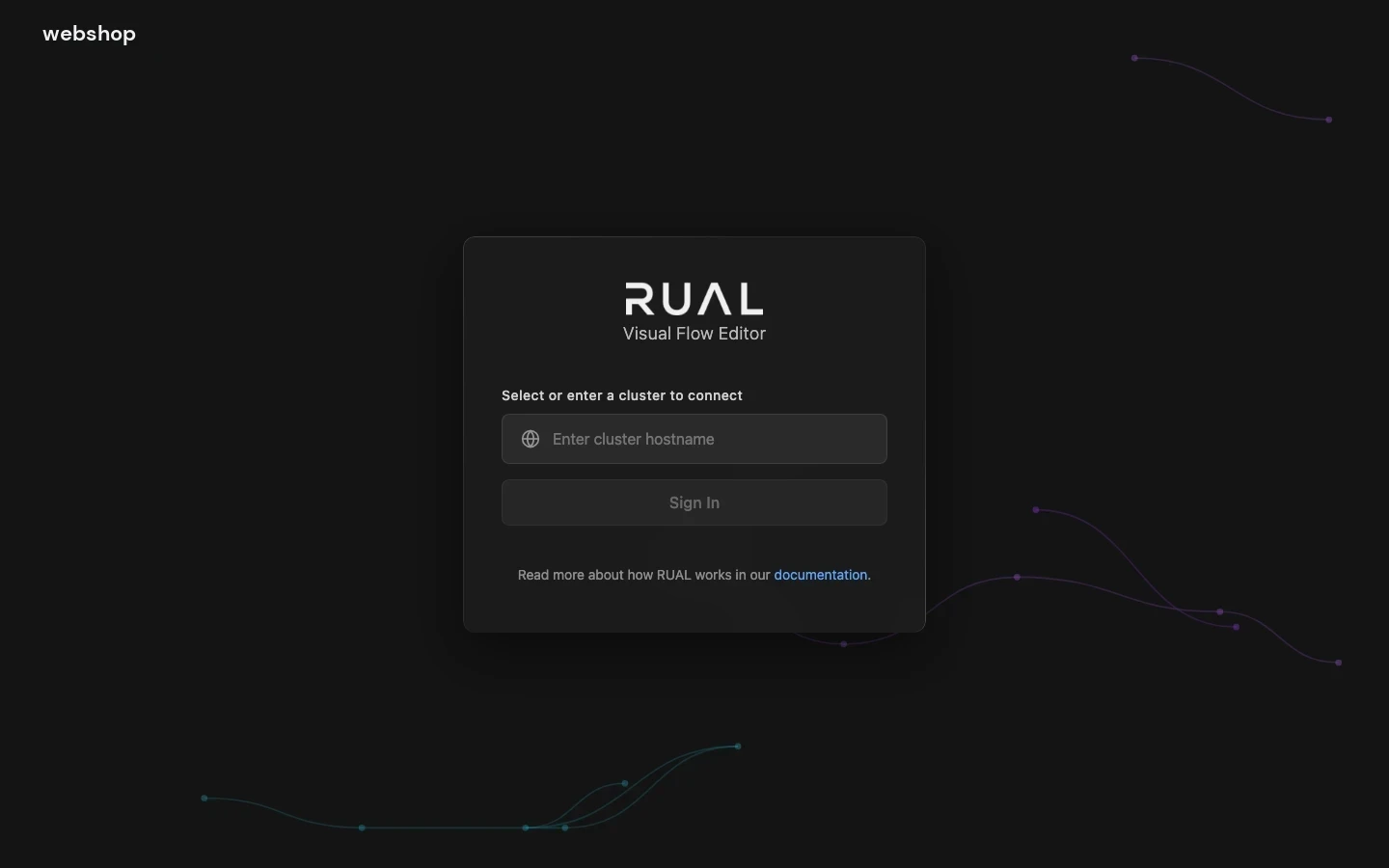
Signing in happens on your cluster
Enter the hostname of your cluster and choose Sign In. Studio hands you over to the login page of that cluster, because credentials are always checked by the cluster itself, never by Studio.
- Clusters you signed in to before are remembered in the list, so returning is one click. Remove an entry with the
xnext to it. - If you do not have an account yet, an administrator of the cluster creates one for you. Getting Access walks through receiving credentials and your first login.
Seven areas in the sidebar
The Search menu... box at the top filters the sidebar instantly. Each entry below links to the page that documents the concept in depth.
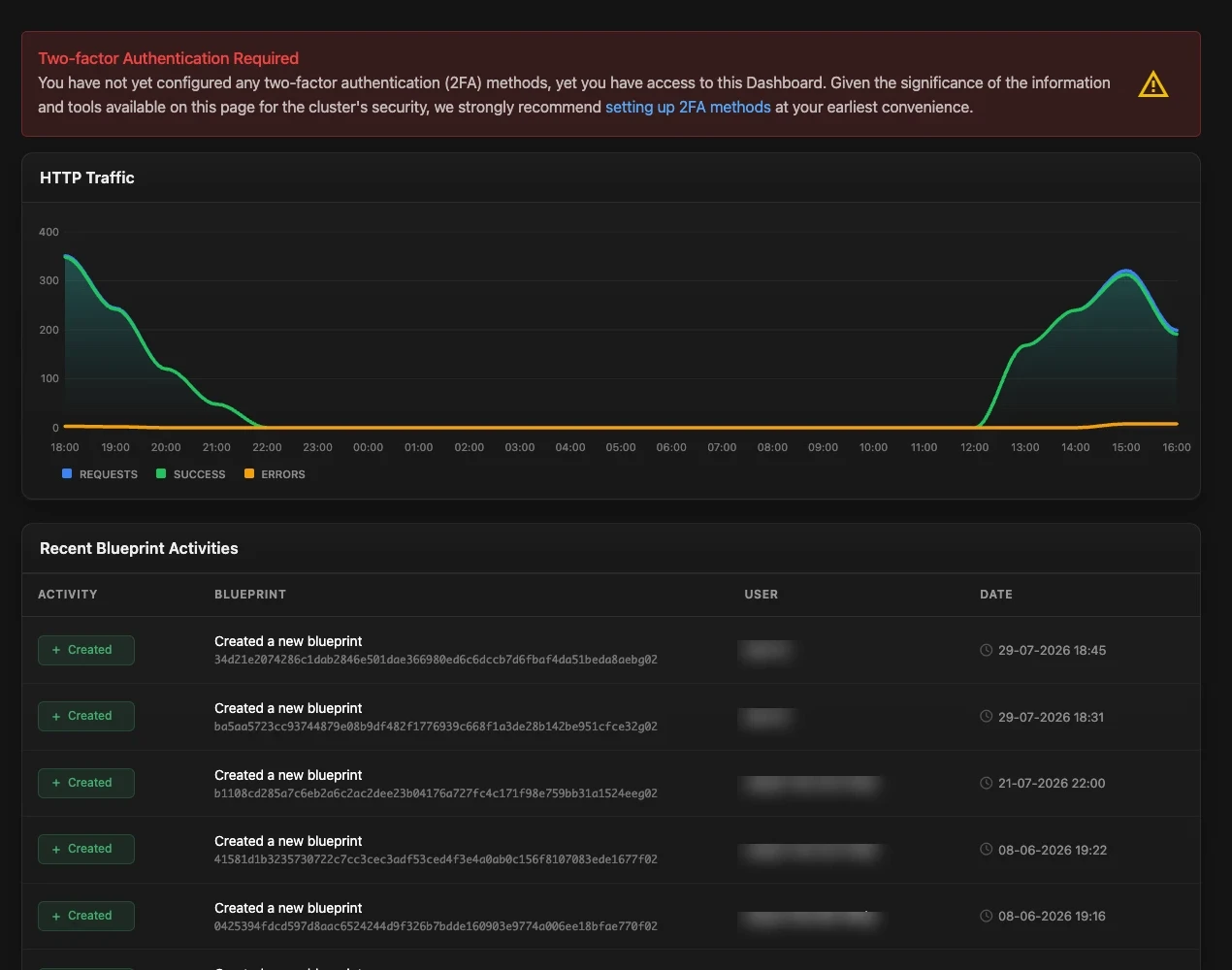
Dashboard: is the cluster healthy, and what changed?
The landing area after sign in.
- General Information: live HTTP traffic chart (requests, successes, errors), the recent blueprint activities (who created, renamed, or removed which blueprint and when), and the developers currently active on the cluster.
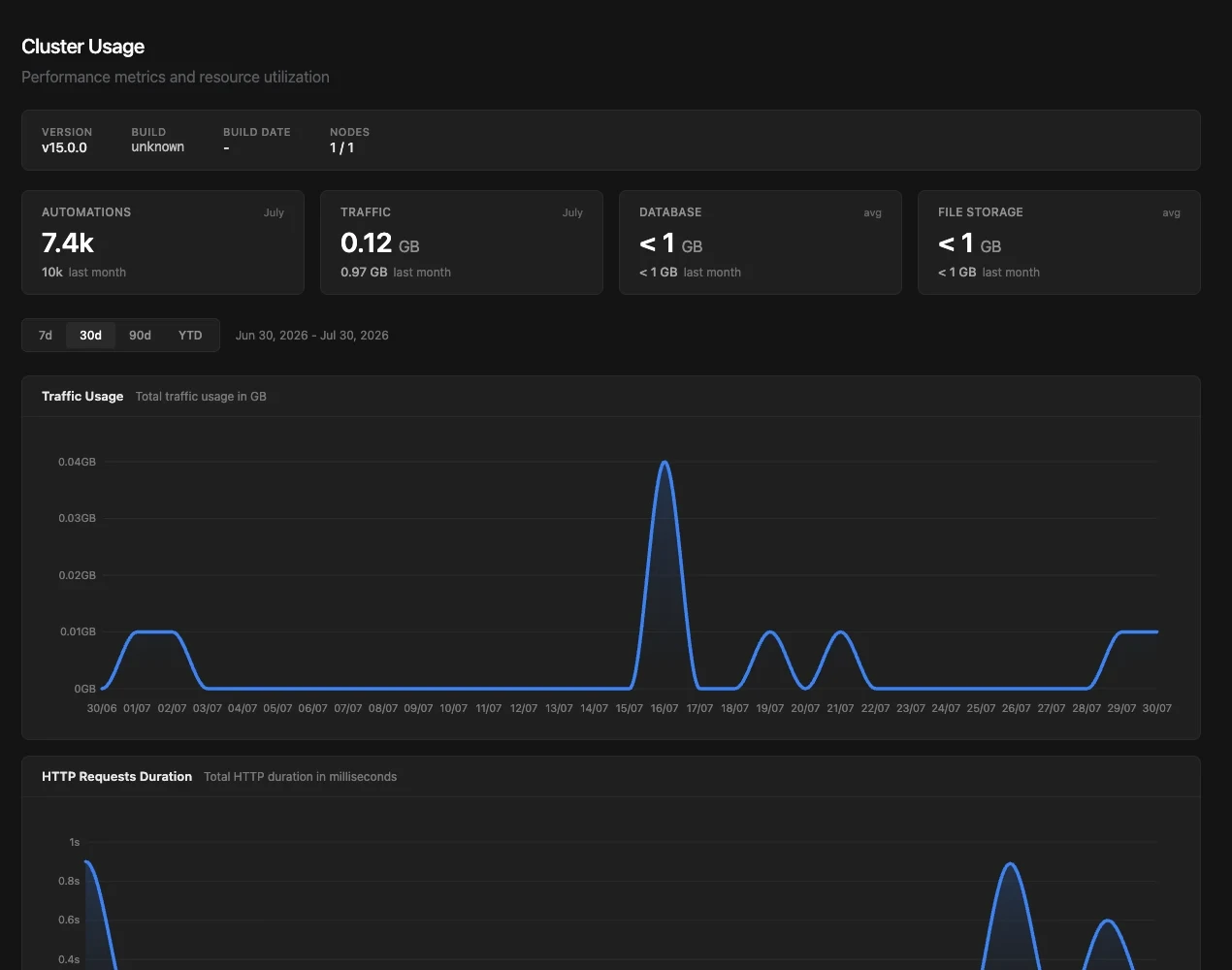
- Cluster Usage: the numbers billing and capacity planning care about: automations run this month, traffic in GB, database and file storage, with graphs over 7, 30, or 90 days and year to date.
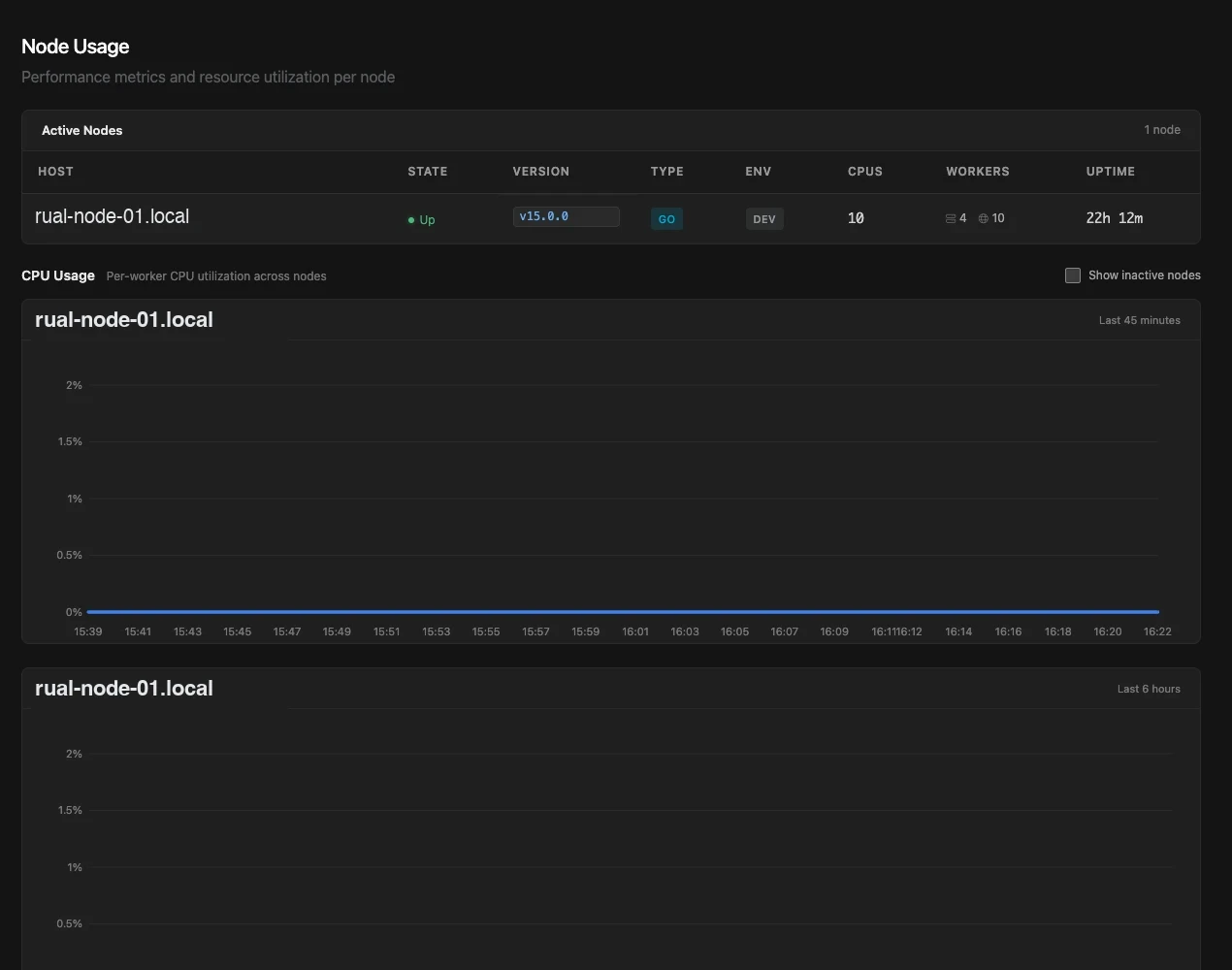
- Node Usage and Memory Usage: per-node and per-worker resource utilization: CPU per worker, memory per node, node versions, types, and uptime. A cluster can run multiple nodes; these pages show each one separately.
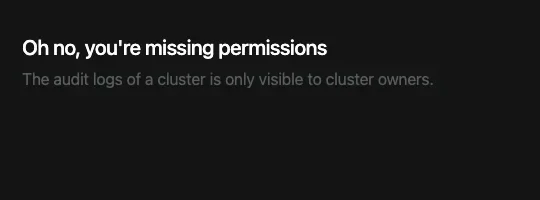
- Audit Logs: sign-ins with full access, privilege changes, deletions, and blocked outbound requests. Repeats are counted per hour, so
x4means it happened four times. Only cluster owners can open this page; everyone else sees a permission notice.
Blueprints: the editor and what it shares
This is where you spend most of your time.
Overview
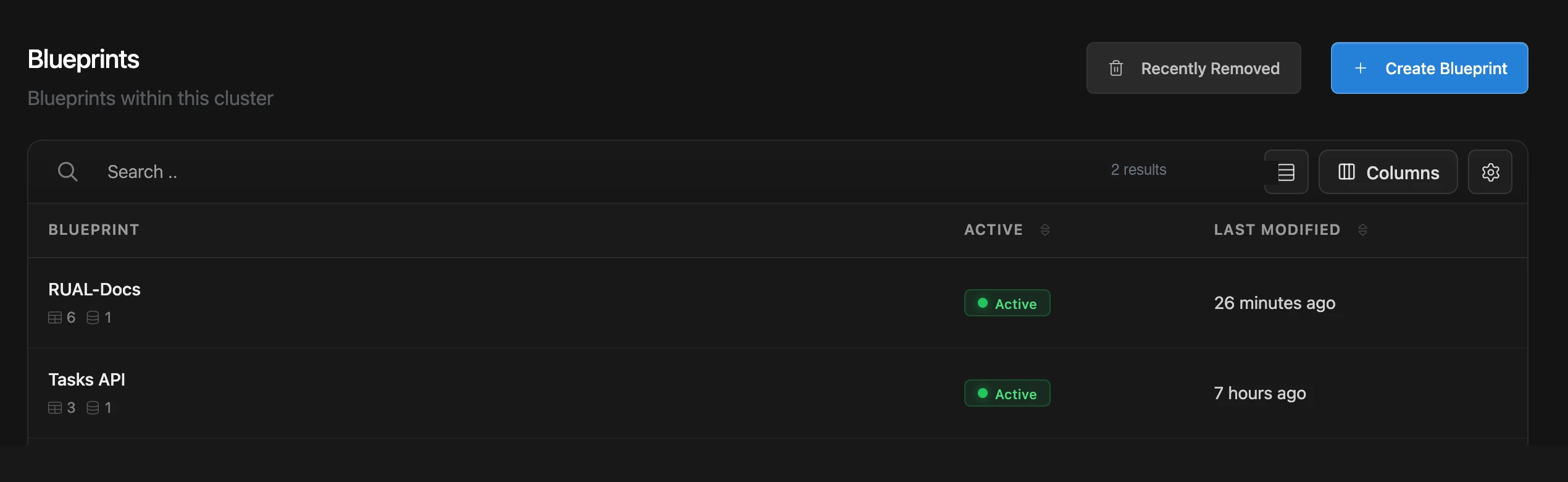
The overview lists every blueprint on the cluster with its active state and last modification. Each row shows who contributed to the blueprint and for what percentage, so you can see at a glance who to ask about a flow. Tags appear as chips on the row. The Columns button reconfigures the table, and Recently Removed lets you restore a blueprint that was deleted by accident.
Creating a blueprint
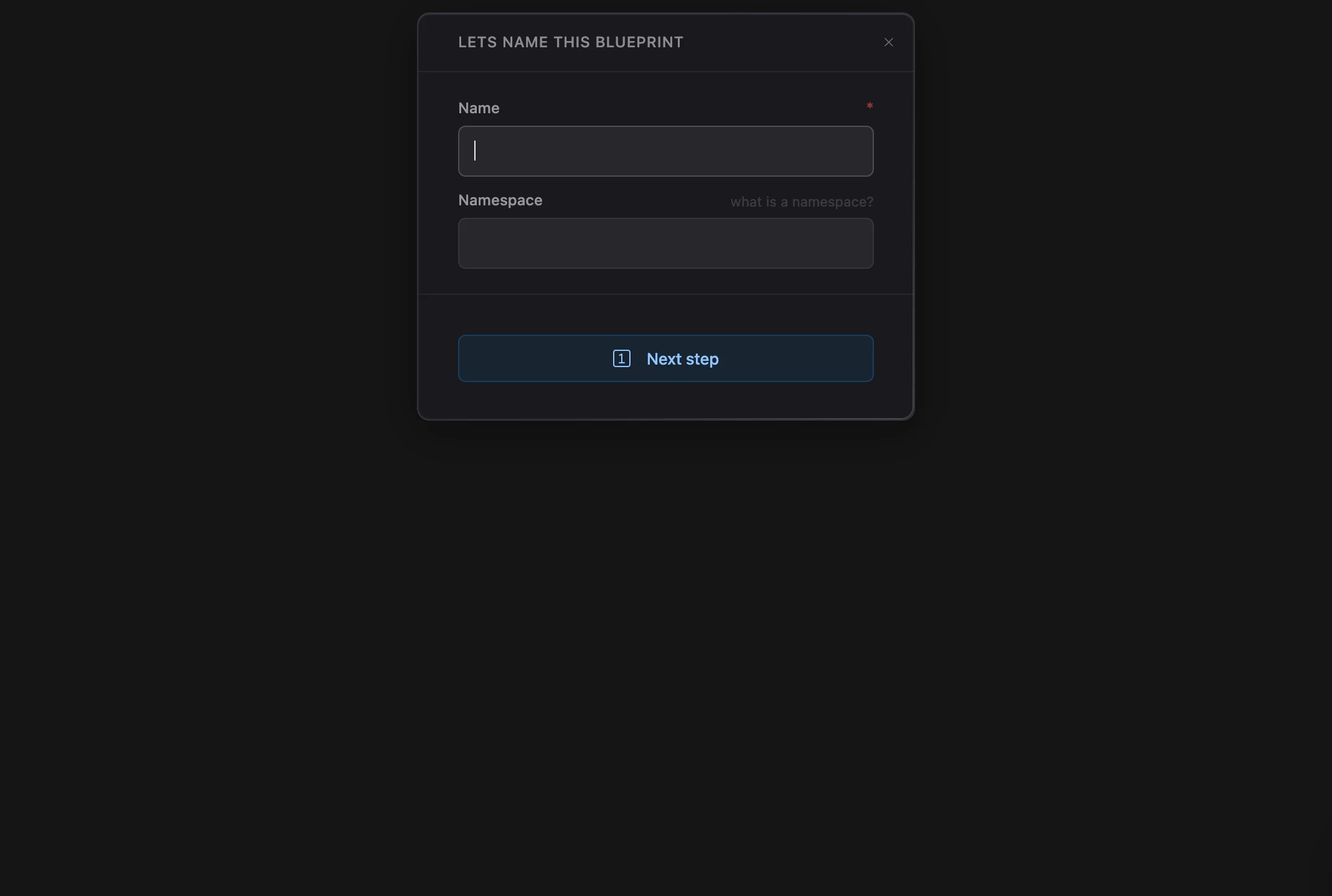
Create Blueprint starts with a name and an optional namespace. Namespaces prefix the public functions of a blueprint, which keeps function names unique when blueprints call each other; Best Practices explains when to use one.
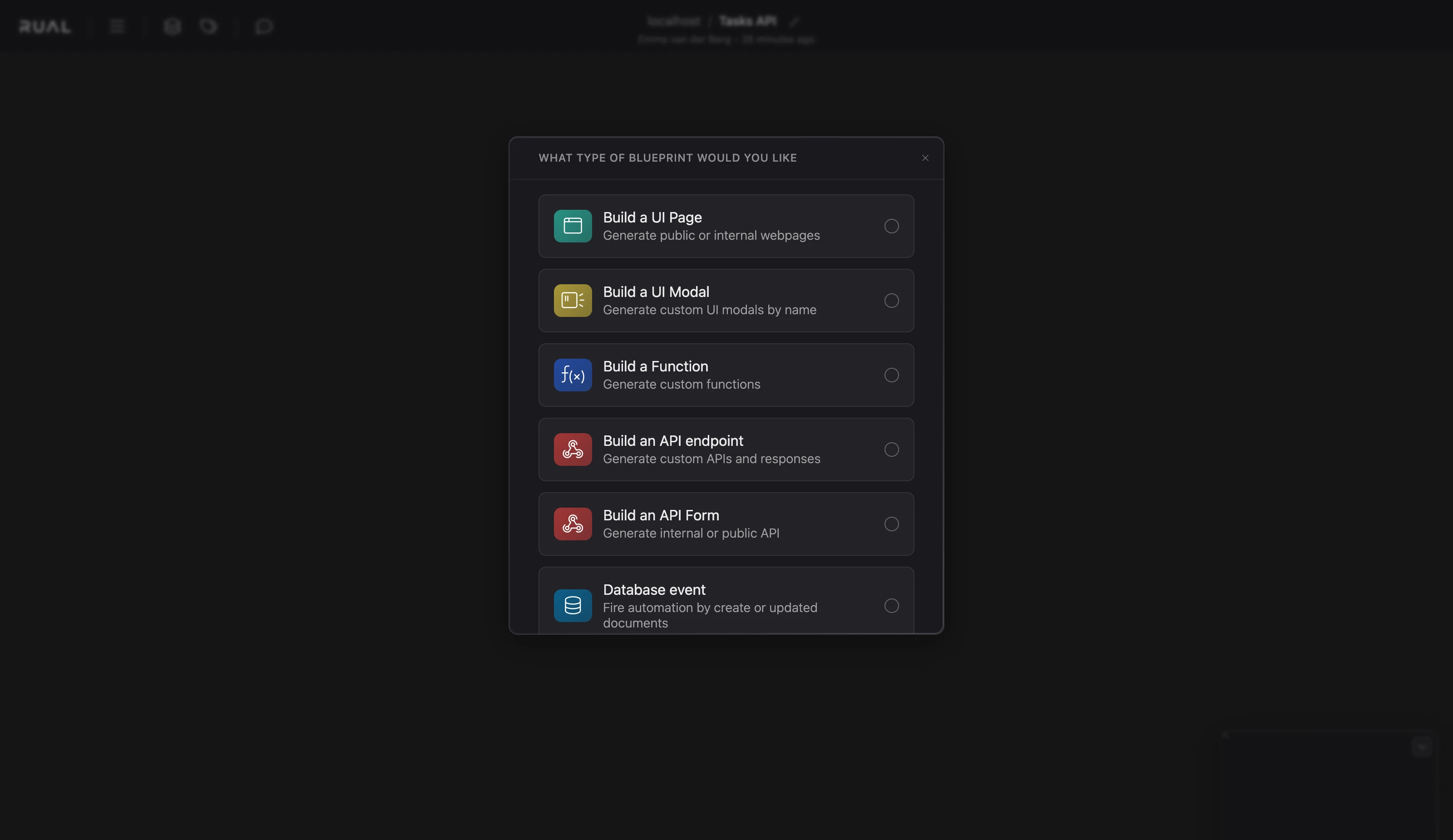
The next step asks what type of blueprint you would like. Each type pre-arranges the canvas with the starting blocks for that job, so you begin with a working skeleton instead of an empty canvas. The six starting points are Build a UI Page, Build a UI Modal, Build a Function, Build an API endpoint, Build an API Form, and Database event.
web_page block: Your First Page walks through it. State pages are deprecated. The canvas
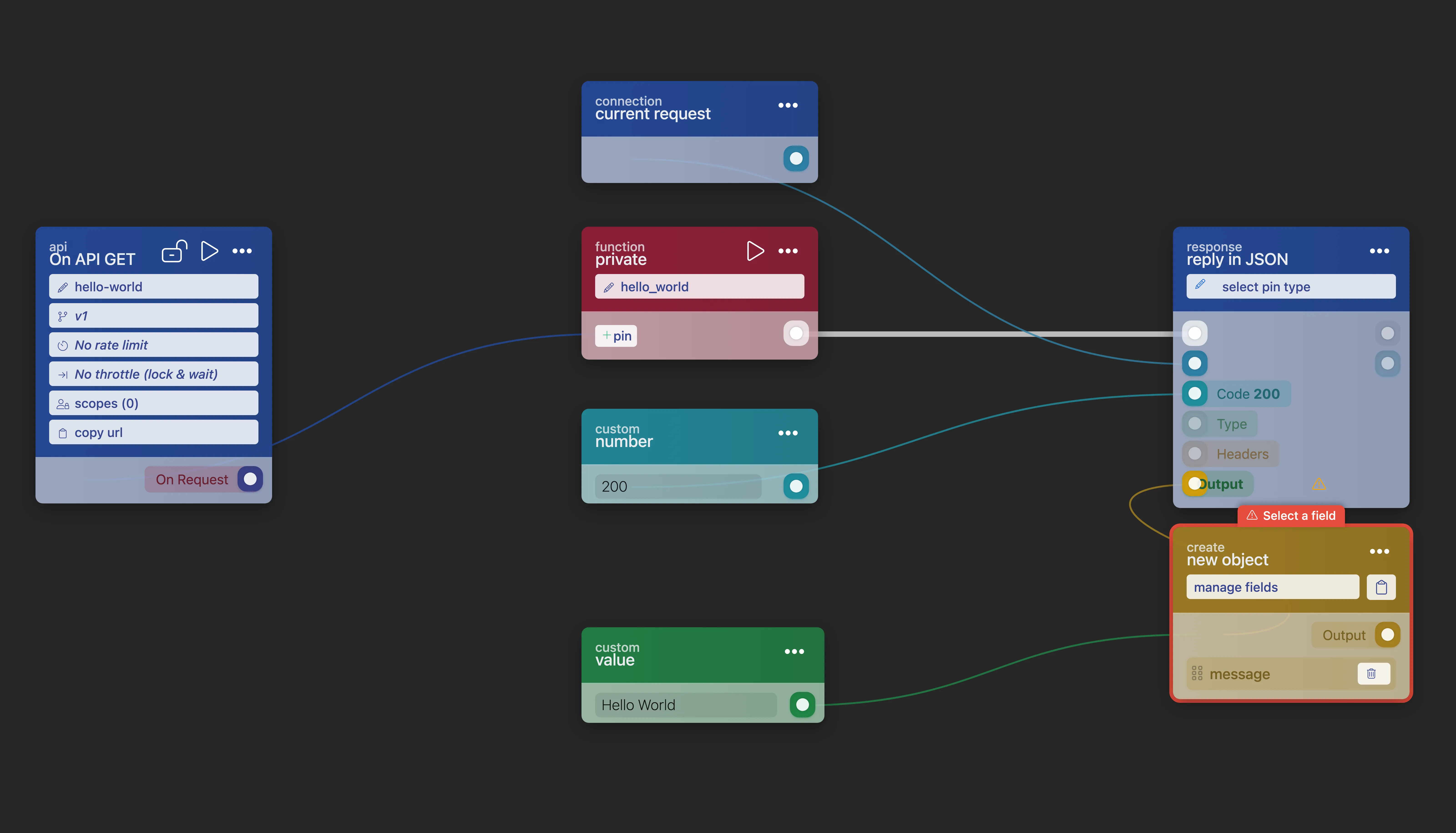
You place blocks and connect their pins into flows: drag from an out-pin to an in-pin to connect, or drag into empty space to create and connect a new block in one motion. Colored blocks are starters and functions, the small circles are data and flow pins, and the lines between them are the order and data of execution.
Quickstart builds your first flow step by step, Introduction to Blueprints explains the mental model, and All blocks documents every block you can place. To edit a blueprint as text instead, switch to the code view.
The top bar holds the blueprint's lifecycle actions. See How to Deploy before your first release.
- Saving publishes your edits. On a current core there is no separate deploy step; until you save, your edits are unsaved changes that other developers can see on the canvas and visitors cannot.
Activateturns the blueprint on or off for triggers. A new blueprint needs this once.

Manage Tags and Fields
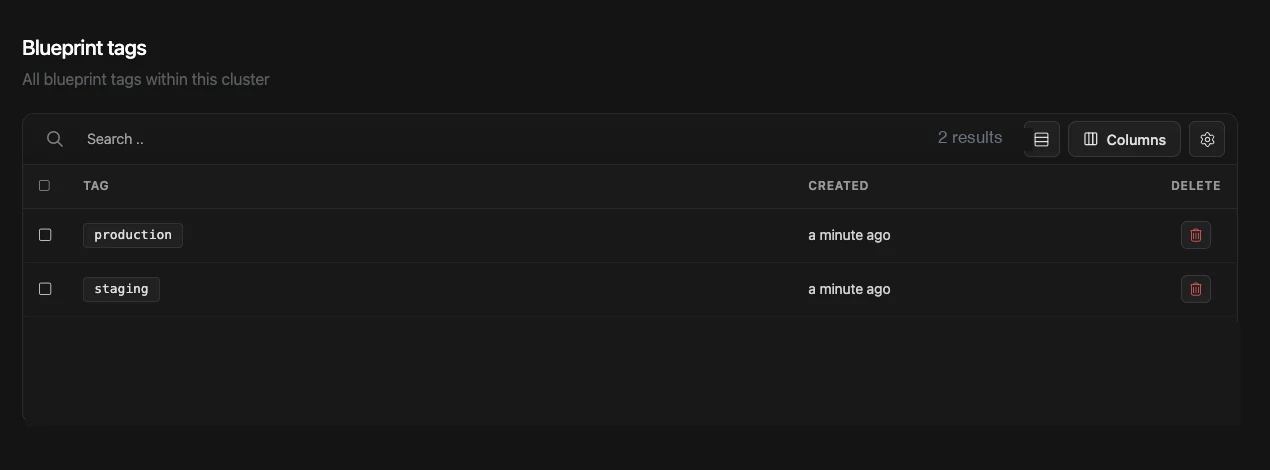
- Manage Tags lists the labels you can stick on blueprints to group them in the overview.
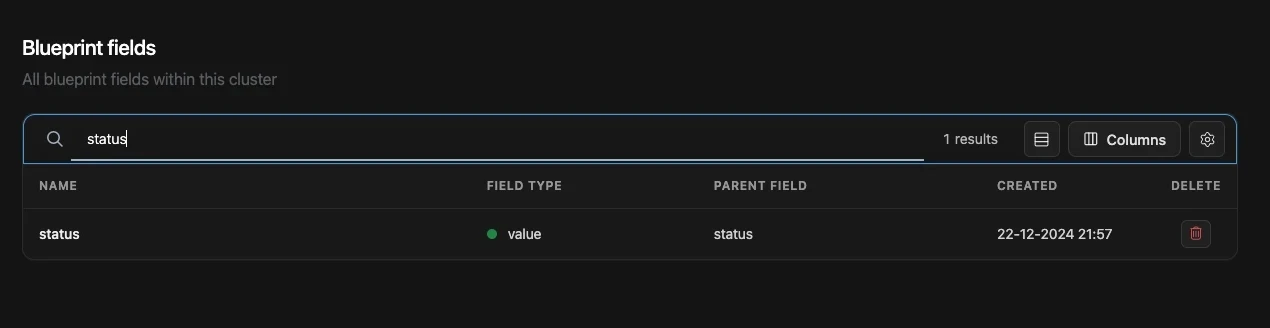
- Manage Fields lists every field in the cluster with its type and parent. Fields are the reusable building blocks of your data model, shared between storages, forms, and APIs. Deleting a field here removes it everywhere, so the list doubles as an impact check.
Manage Storages, Redis Keys, and Settings
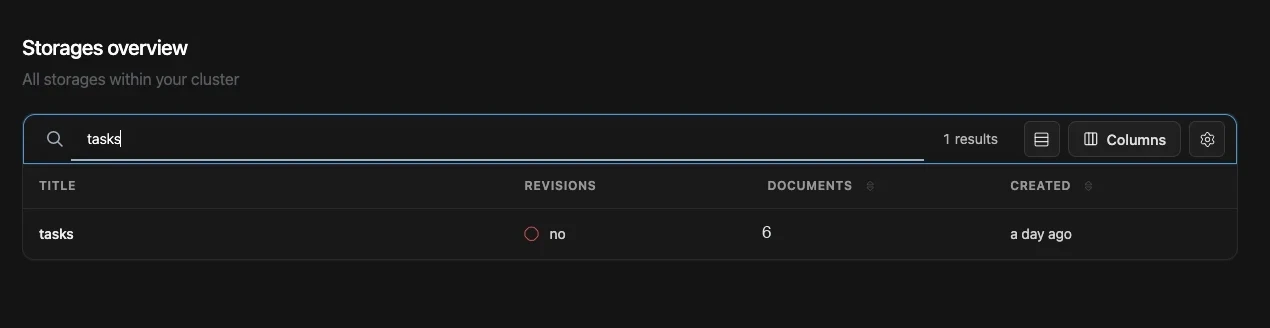
- Manage Storages shows every storage with its document count and creation date. Storages are the document databases your flows read and write; Storages covers them in depth.
- Manage Redis Keys inspects the cluster's Redis cache directly, useful when debugging cached values; Redis Keys lists the API equivalent.
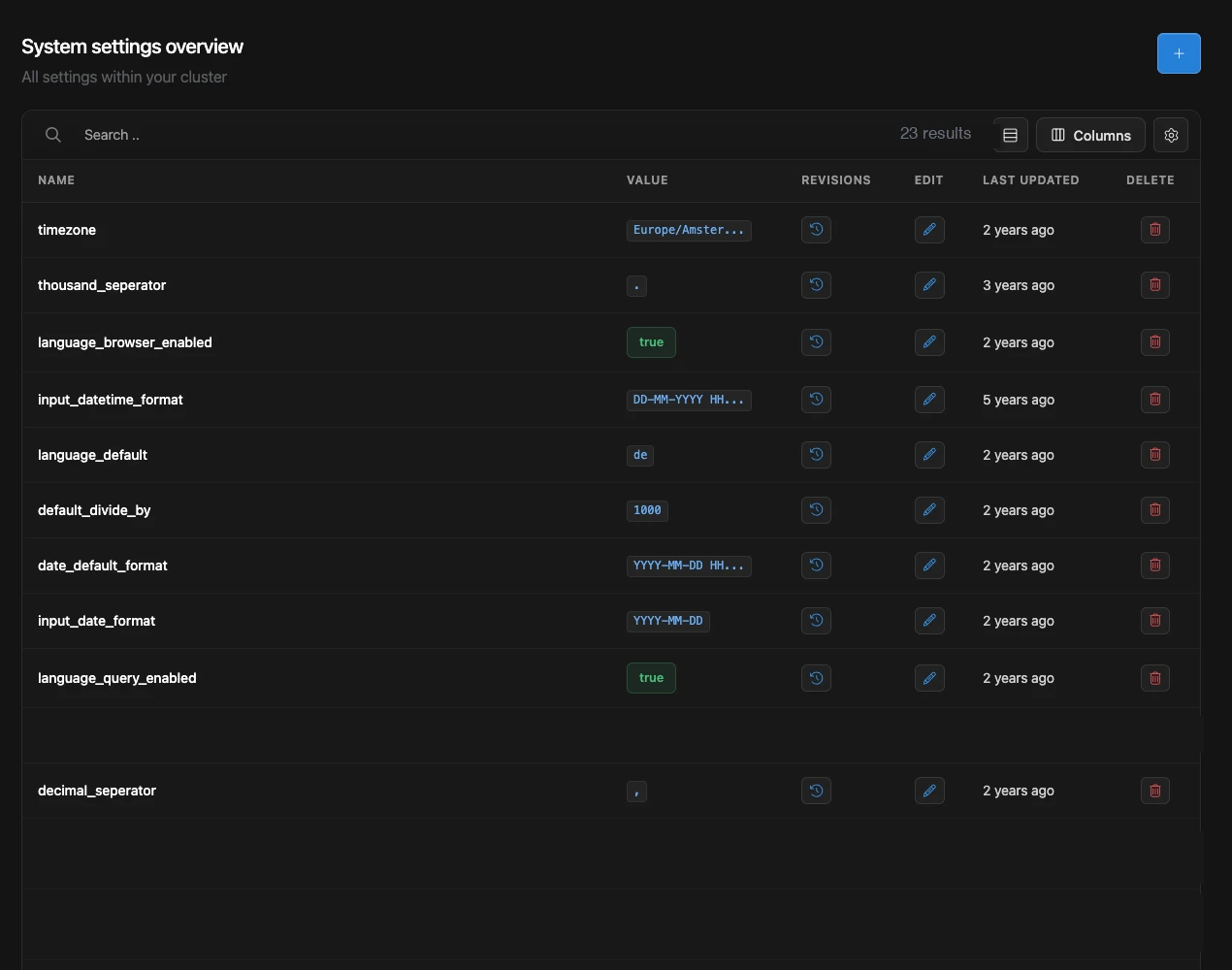
- Manage Settings edits the system key-value settings of the cluster, from default language to date formats; System Settings documents what each key does.
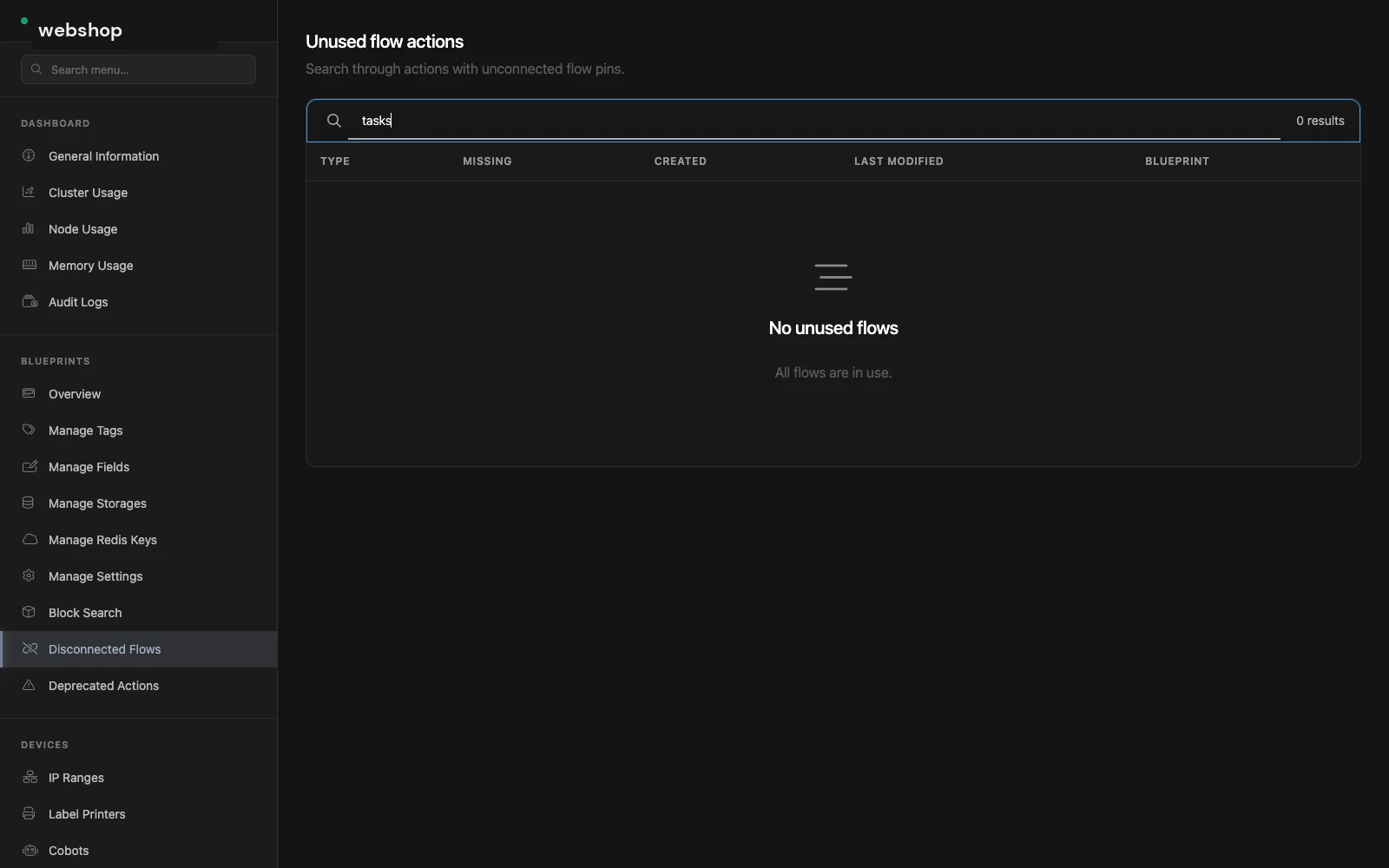
Block Search, Disconnected Flows, Deprecated Actions
Three maintenance tools for a growing cluster:
- Block Search: find blueprint actions by guid, event, function name, or storage, for example every block that writes to a storage you want to rename.
- Disconnected Flows: actions whose flow pins are no longer wired to a starter, so they can never run. The list shows the block type, what is missing, and the blueprint it lives in: safe cleanup candidates.
- Deprecated Actions: blocks that were deprecated by a core upgrade, so you can plan their replacement. Version Management explains the upgrade routine.
Devices: local hardware
Most clusters never touch this group; it exists for on-premise and industrial setups.
- IP Ranges defines the network ranges devices may connect from.
- Label Printers registers printers the cluster can send labels to.
- Cobots manages collaborative robots controlled through blueprints.
User Interfaces: what end users see
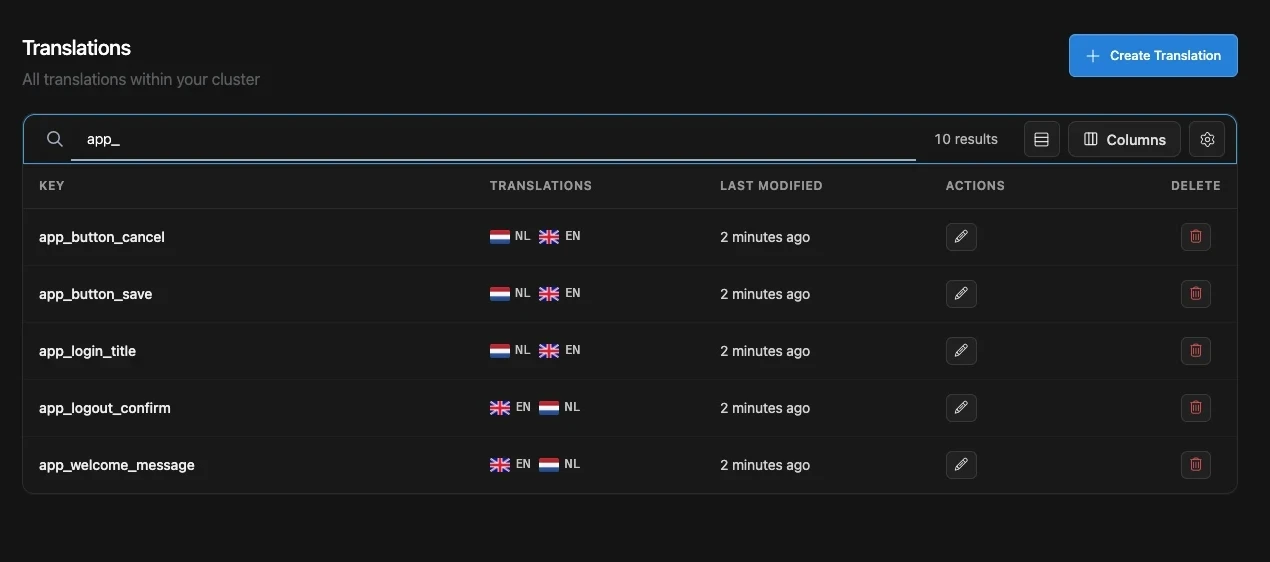
- Manage Translations: the translation keys of the cluster with a flag per language. Blocks that render text pick a key here, and the visitor's language decides which value is shown.
- Manage Templates: page templates with edit settings and revisions. Templates define the shared shell (menu, footer, scripts) around your pages. On a web page that is a stored
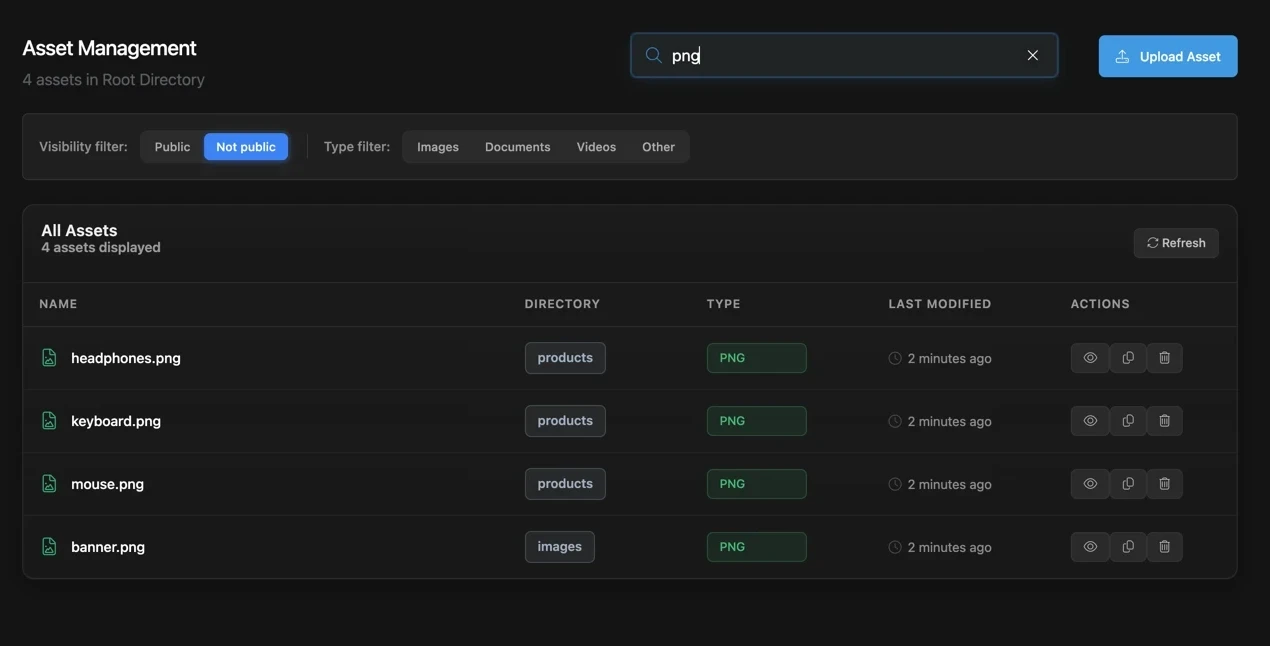
webtemplate used as a layout: see Layouts and Partials. - Manage Assets: the file storage for images, documents, and videos, with visibility and type filters and direct upload. Assets shows how flows generate and serve them.
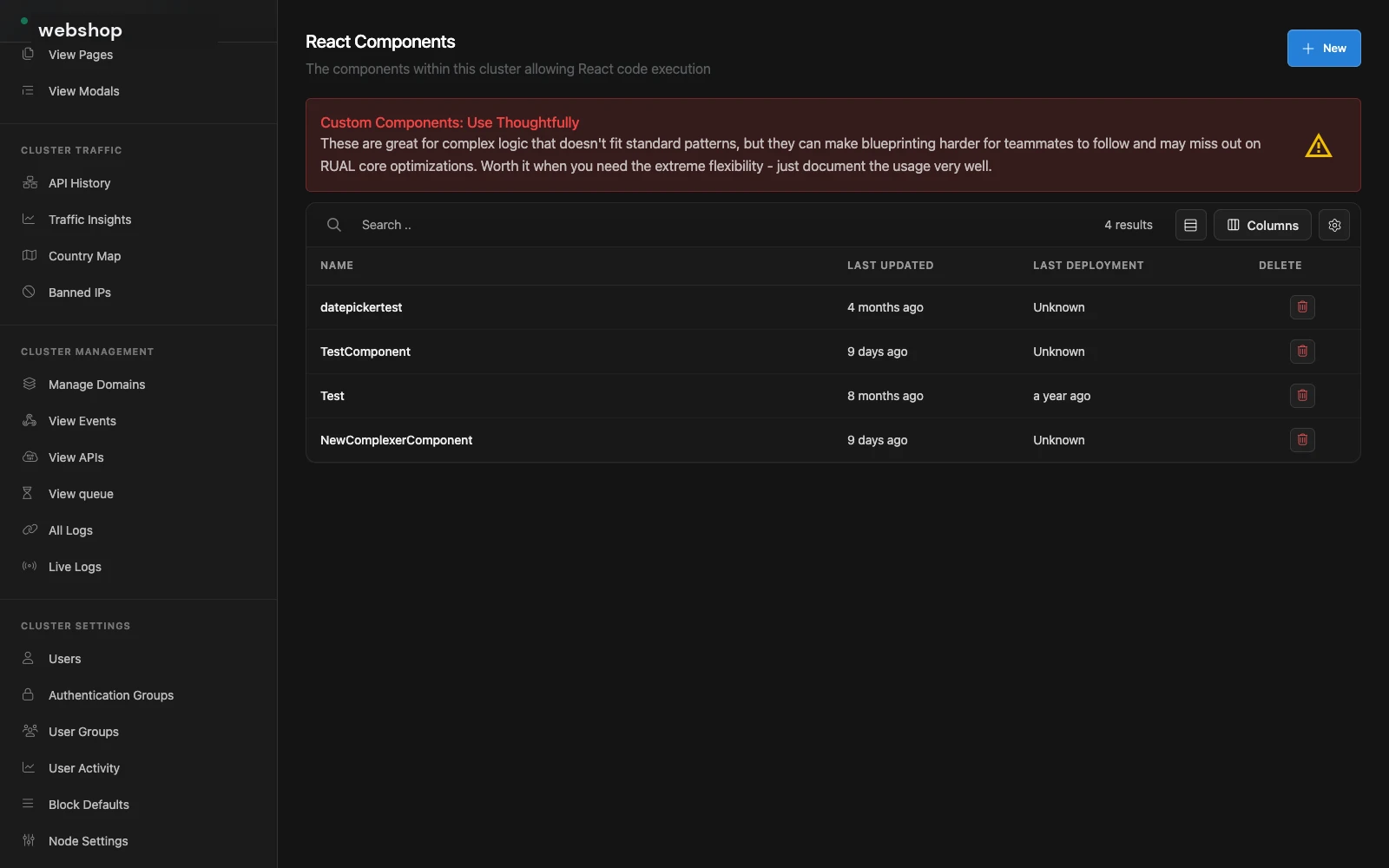
- Manage Components: custom React components registered on the cluster, with their own code editor. Components documents them. Note the warning Studio shows: custom components trade blueprint readability for flexibility, so document their usage well. They belong to state pages, which are deprecated.
- View Pages and View Modals: read-only overviews of the state pages and modals currently defined on the cluster, across all blueprints.
Cluster Traffic: who calls the cluster, and from where
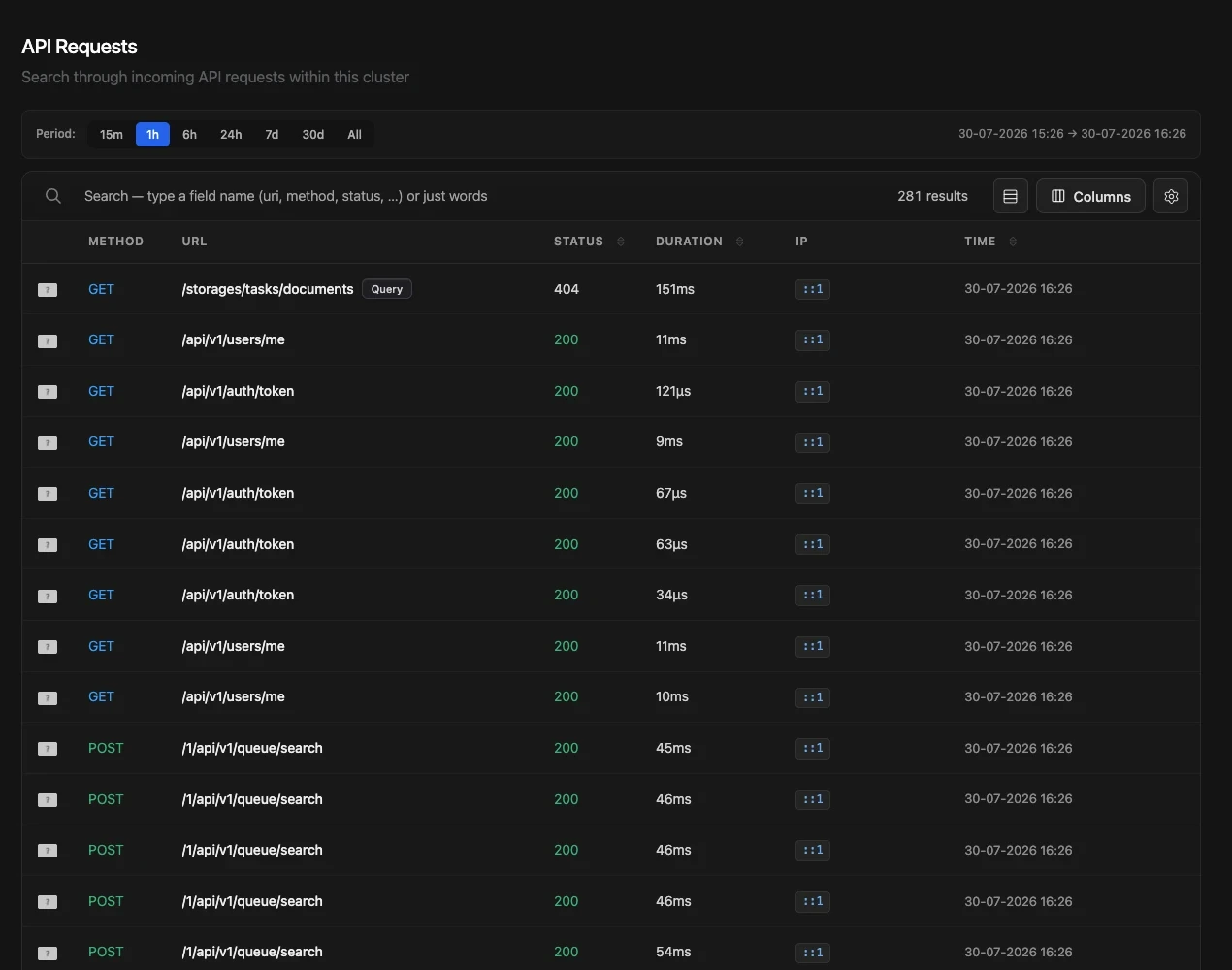
- API History: every incoming request with method, URL, status, duration, IP, and time, searchable by any field and filterable by period. Open a row for the full request and response. API History covers the API side.
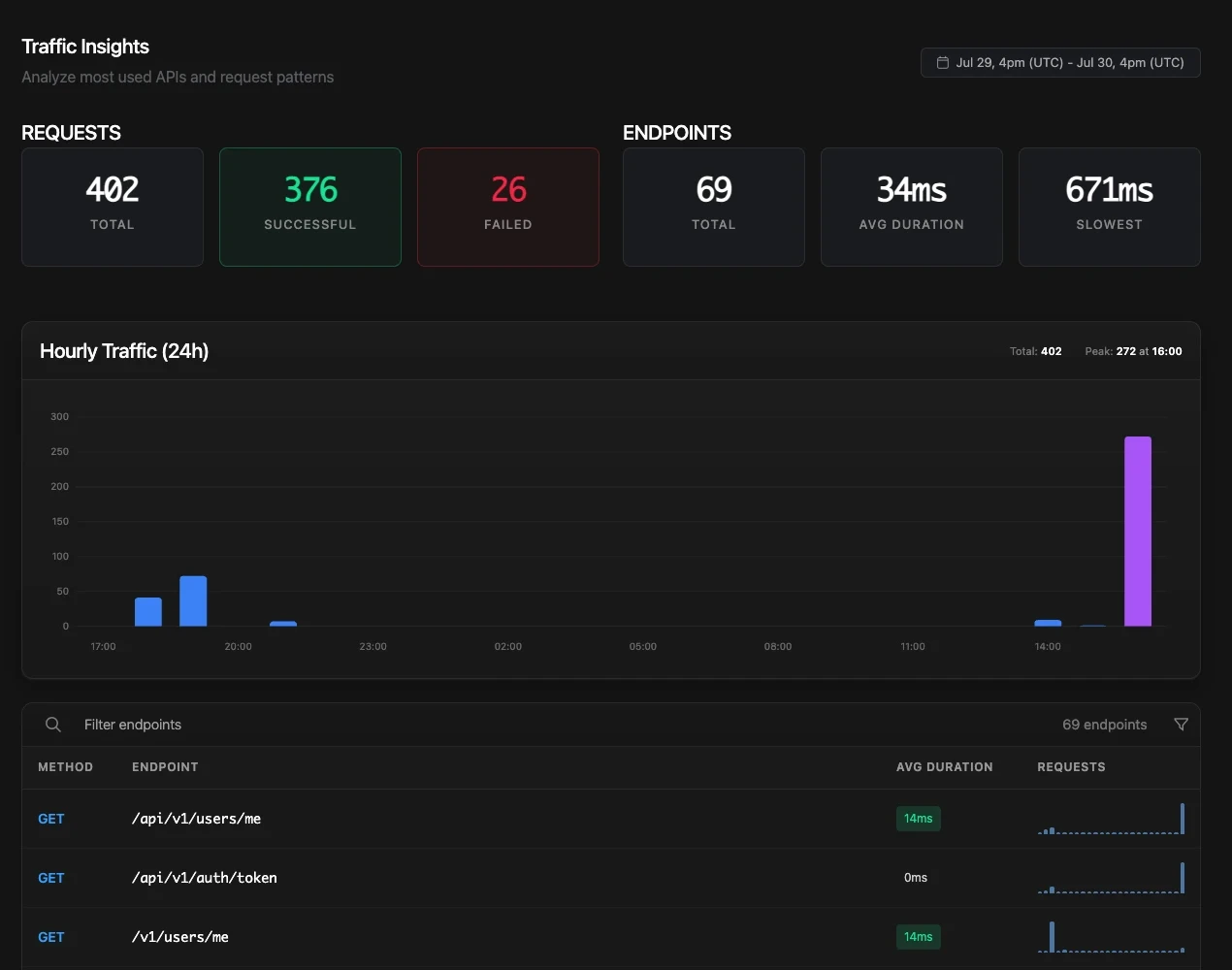
- Traffic Insights: the aggregate view: totals, failures, average and slowest durations, an hourly traffic chart, and the most-used endpoints with their sparklines.
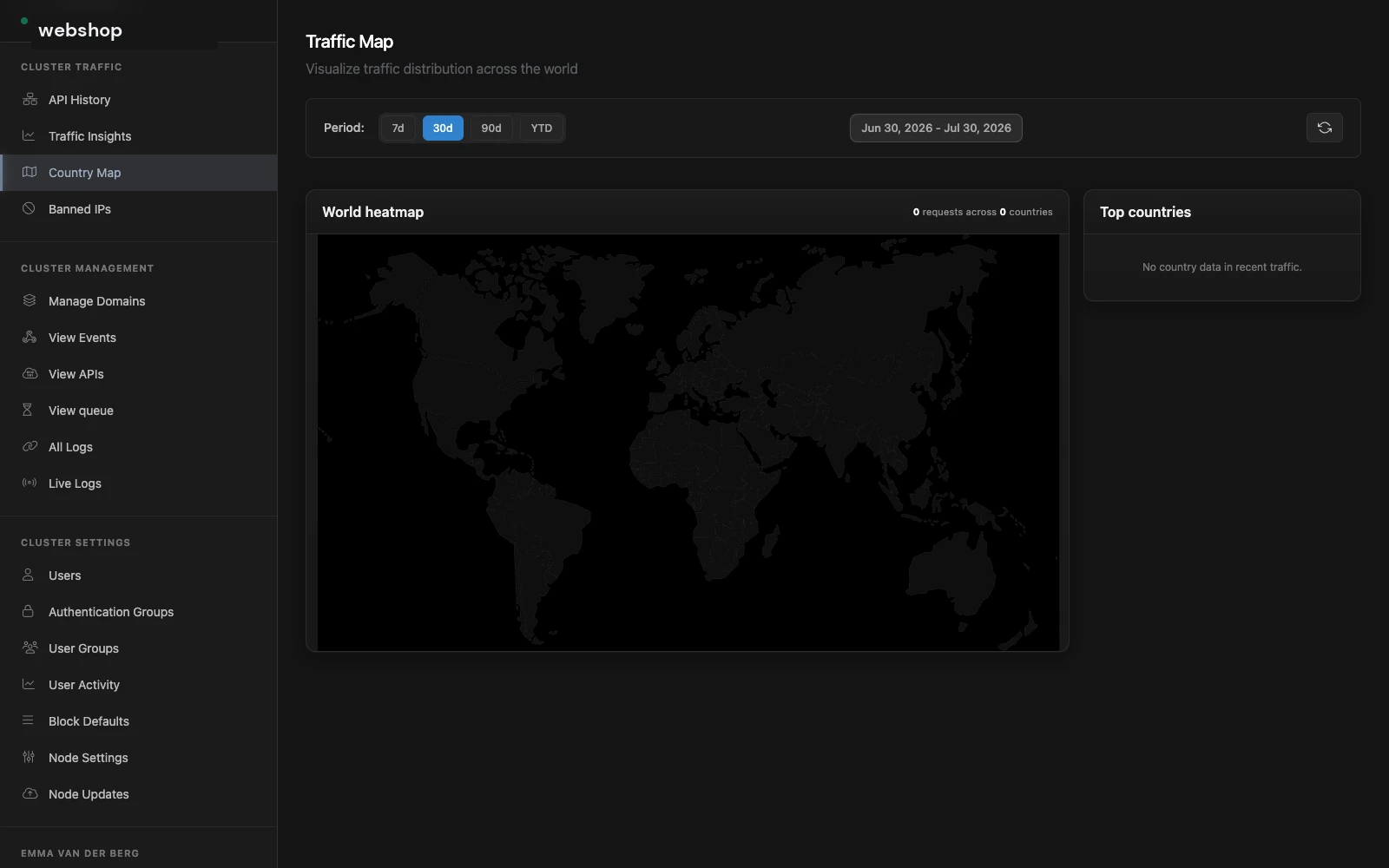
- Country Map: a world heatmap of where requests originate, with the top countries listed.
- Banned IPs: addresses the cluster blocks, managed manually or by automated abuse protection.
Cluster Management: domains, APIs, queue and logs
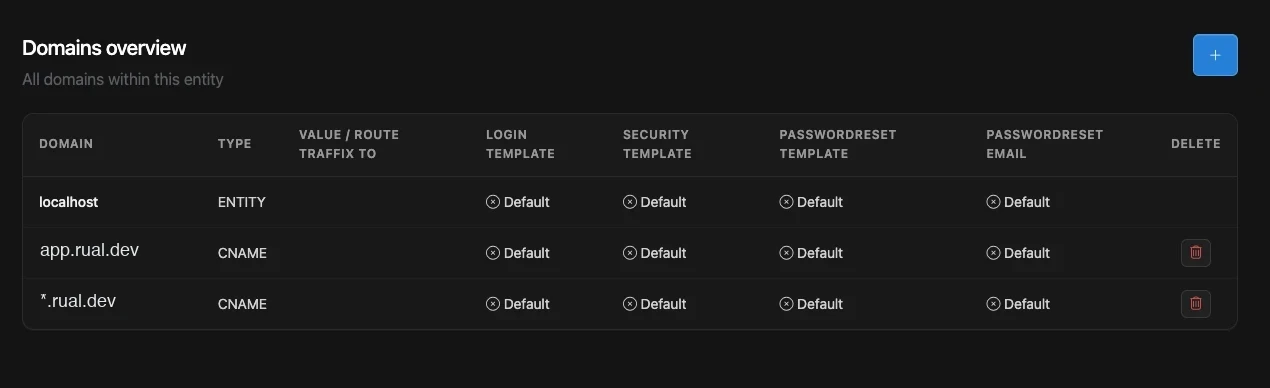
- Manage Domains: the domains routed to this cluster, with the templates used for login, security, and password reset pages per domain. This is where you point a custom domain at your cluster.
- View Events: the storage events defined on the cluster: flows that fire when documents change. Storage Events explains the mechanism.
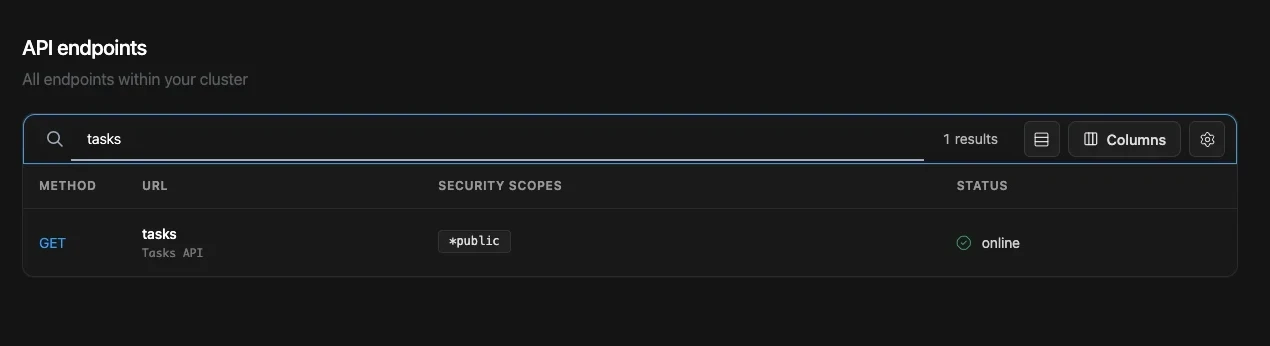
- View APIs: every custom API endpoint registered on the cluster with its method, URL, security scopes, and status.
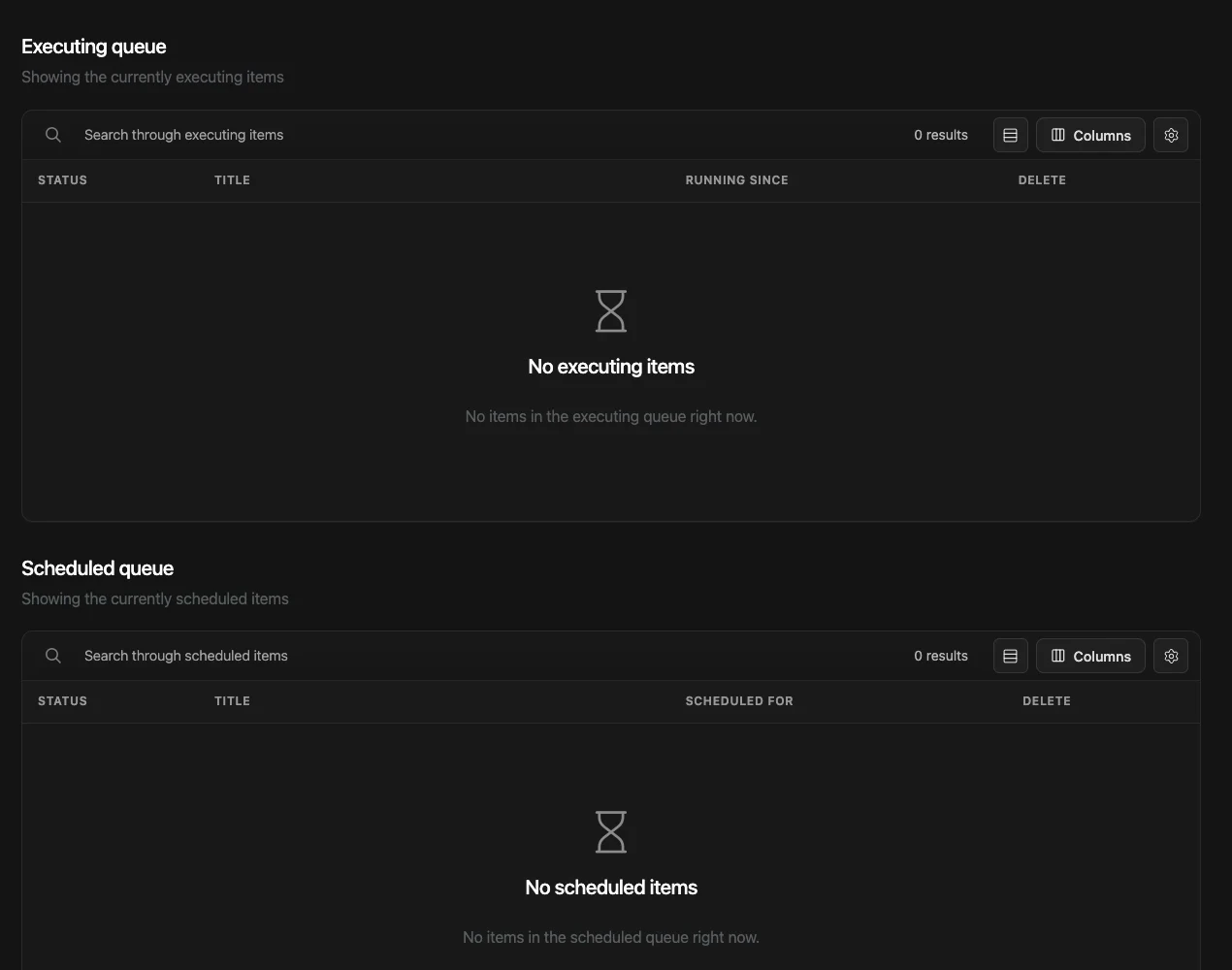
- View queue: the executing and scheduled queue items. Long-running and delayed work lands here; Queue documents how flows use it.
- All Logs and Live Logs: the cluster's system logs, historical or tailed in real time with debug scopes. Debugging shows the live-log workflow.
Cluster Settings: who can sign in and what they may do
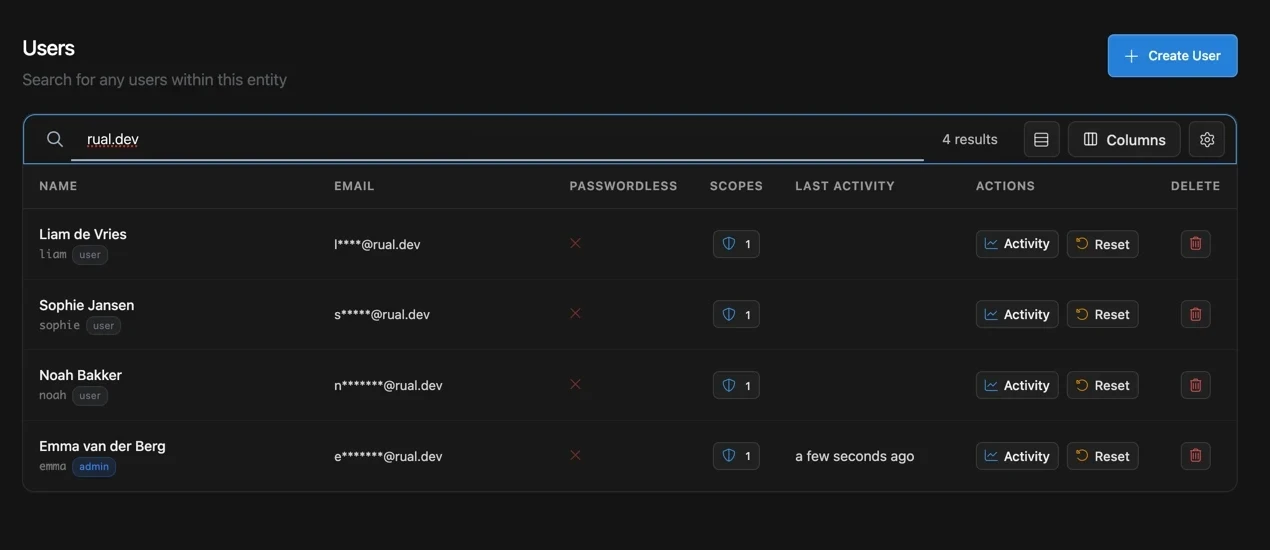
- Users: every account with its role, scopes, and last activity. Each row has quick actions:
Activityopens that user's activity page,Resetclears the failed login counter to unlock an account, and the trash icon removes the account. User Access Management walks through creating and editing users. - Authentication Groups: groups that restrict sign-in itself: require two-factor authentication, set expiry or inactivity rules, or limit access to whitelisted IPs.
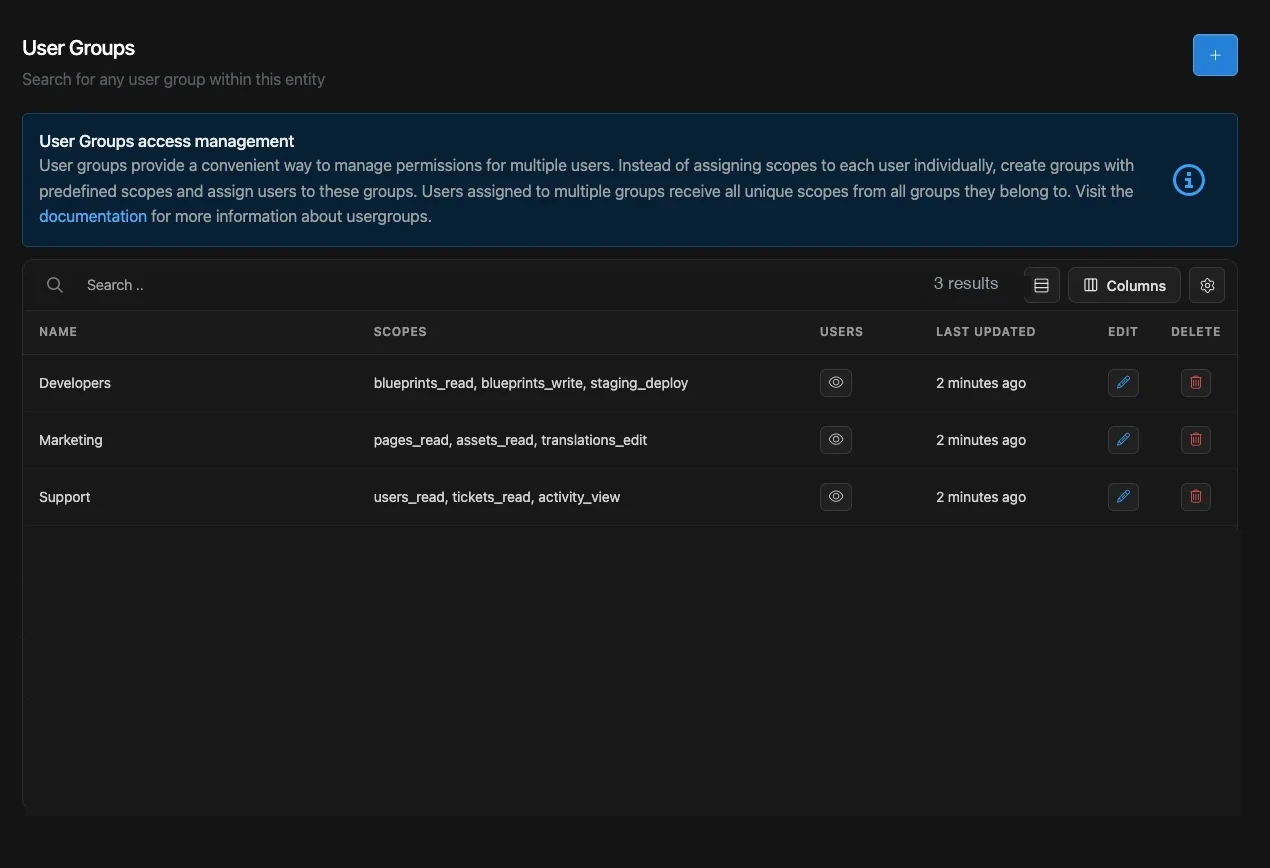
- User Groups: bundles of scopes assigned to users at once. Users in multiple groups receive the union of all scopes. User Roles Explained helps you design them.
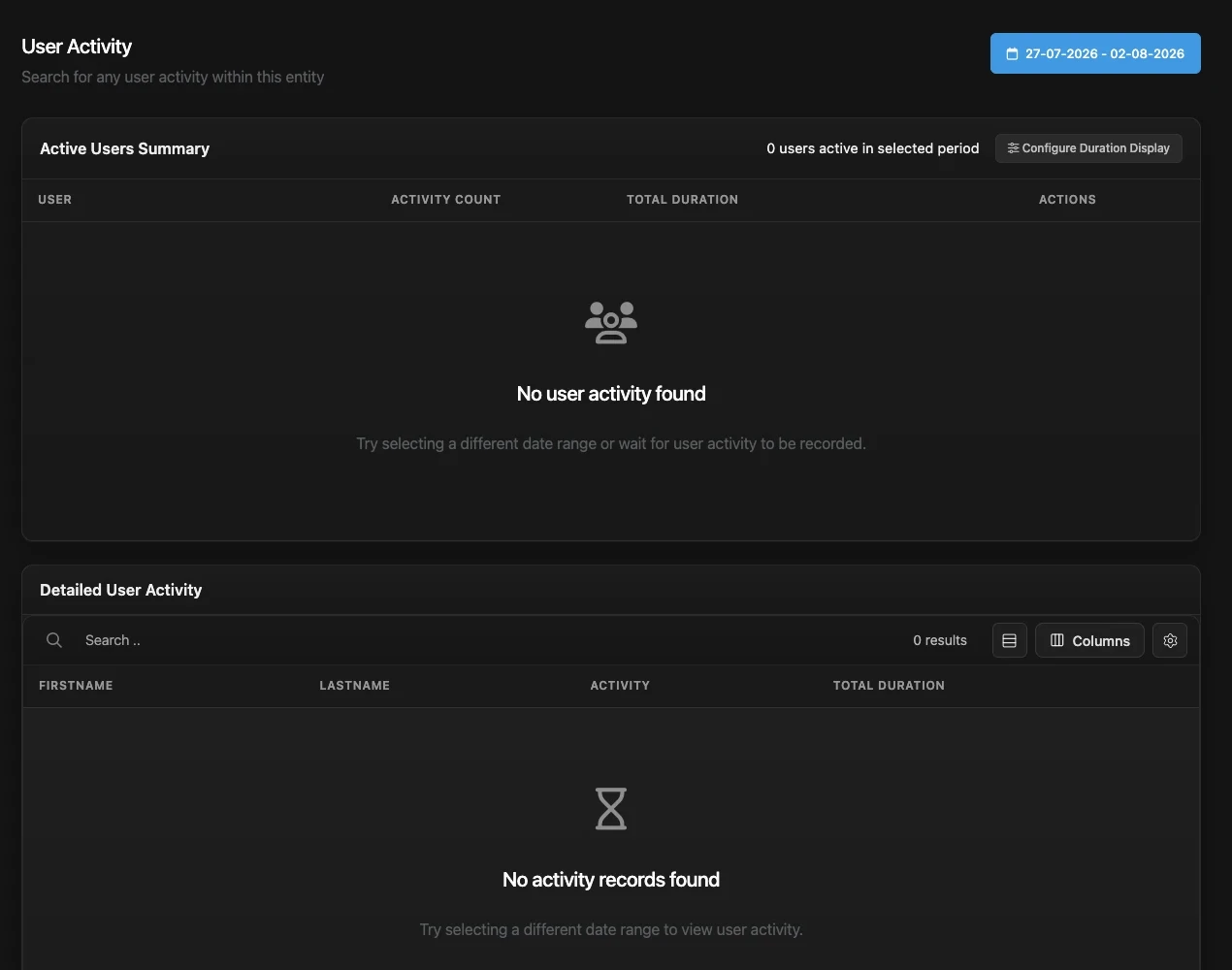
- User Activity: who was active when and for how long, as a summary per user and as detailed records over a selectable period.
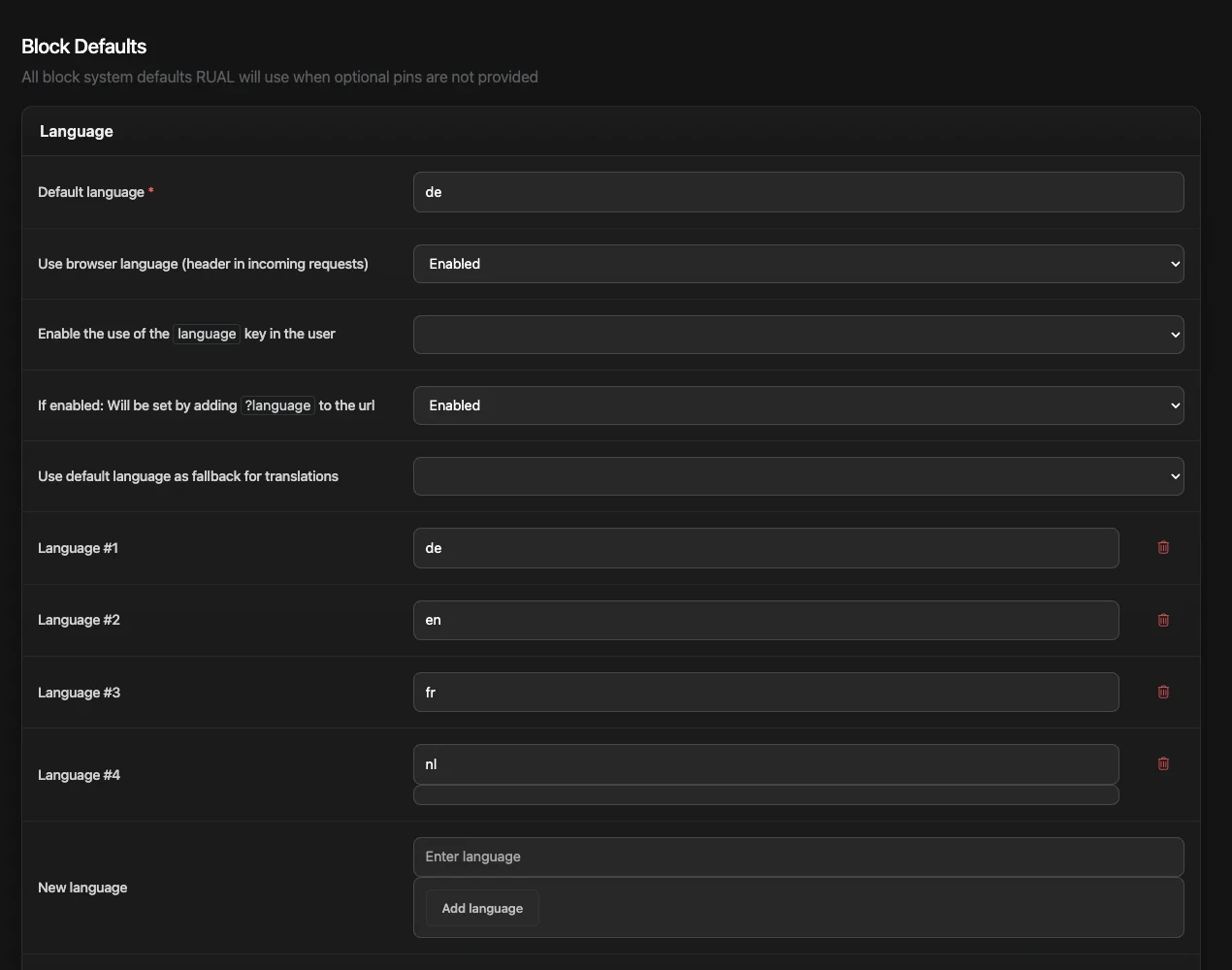
- Block Defaults: the system defaults blocks fall back to when optional pins are not provided, starting with the language settings of the cluster.
- Node Settings and Node Updates: per-node configuration and the rollout of core updates across nodes. Version Management covers safe upgrades.
Right-click almost anywhere
Right-clicking opens context menus on the canvas, on blocks, on pins, and on table columns. Dragging from a pin creates and connects a new block in one motion. Context Menu documents the built-in menu, and Tips & tricks collects the canvas shortcuts.
Where to go next
Quickstart From cluster login to a live page and API endpoint in 15 minutes. Core Concepts Blueprints, blocks, pins, flows, storage and activation. API Guide Everything Studio does is backed by cluster APIs you can call directly. Debugging Live logs, play mode, and inspection tools when a flow misbehaves.Frequently asked
Where do I open RUAL Studio?
You work in RUAL Studio at rual.at. One installation serves every cluster you have access to: you enter the cluster hostname, and Studio hands you to that cluster's own login page, because credentials are always checked by the cluster itself, never by Studio.
How do I restore a deleted blueprint in RUAL Studio?
The Blueprints overview has a Recently Removed option that lets you restore a blueprint that was deleted by accident. The overview also shows who contributed to each blueprint and for what percentage, so you know who to ask about a flow.
Where can I see who is calling my RUAL cluster?
In the Cluster Traffic group. API History lists every incoming request with method, URL, status, duration, IP and time, Traffic Insights aggregates totals, failures and the most-used endpoints, and the Country Map shows where requests originate.
Who can see the Audit Logs in RUAL Studio?
Only cluster owners. The Audit Logs page records sign-ins with full access, privilege changes, deletions and blocked outbound requests, and everyone else sees a permission notice instead.