Blueprint Best Practices
Opinionated guidance for keeping blueprints small, fast, and maintainable: from naming and functions to caching, deployment discipline, and teamwork.
RUAL gives you a free-form canvas, and that freedom cuts both ways: a blueprint can grow into an unnavigable tangle just as easily as into a clean component. The practices below are the conventions we recommend for teams building serious systems. Each one links back to the feature documentation it builds on.
When to Split Blueprints
Dedicate each blueprint to a single component: a page, a modal, an API endpoint, or a set of related functions. This mirrors the traditional practice of assigning one class to one file. Resist the urge to keep adding "just one more flow" to an existing canvas.
Signs a blueprint has grown too big:
- You rely on the minimap and
Ctrl + Fblock search for every navigation, because scrolling no longer works. - The blueprint mixes unrelated responsibilities. A page, its API, and three scheduled jobs living side by side.
- New team members cannot tell what the blueprint is from the overview, even with tags.
When you do create a new blueprint, pick the matching blueprint type so the canvas starts with the right blocks for a page, modal, API, function, or event.
Splitting does not mean duplicating logic. Share logic between blueprints with public functions: create a trigger_custom_function block in a dedicated function blueprint and call it from anywhere else with function_custom_execute. Functions are private by default. Make them public only when another blueprint genuinely needs them. See Block Execution for how function calls execute.
Naming Conventions
Names are your primary documentation in a system with no code files. Adopt conventions early and apply them everywhere:
| Artifact | Convention | Example |
|---|---|---|
| Blueprint | Name it after the single component it implements. | Task list page, Tasks API |
| Namespace | Set one namespace per function blueprint; it prefixes all functions, public and private. | tasks → tasks.list_tasks |
| Function event | snake_case verb + noun describing the action. | list_tasks, send_invoice_email |
| Storage | Lowercase plural noun: field names are stored lowercase and searches are case-sensitive, so lowercase avoids a whole class of bugs. | tasks, messages |
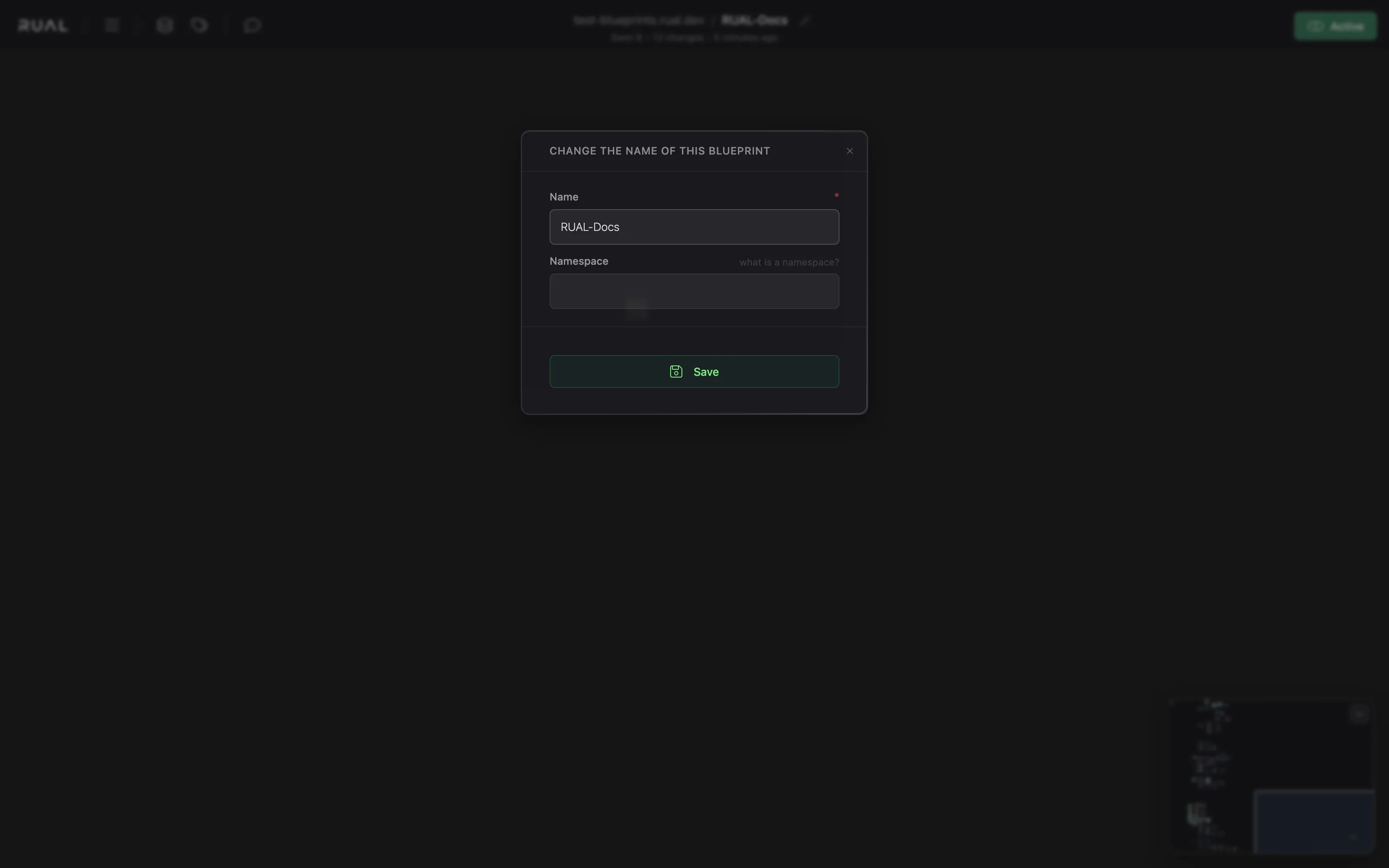
Use the built-in namespace feature (click the blueprint title at the top) instead of manually prefixing each function. Namespaces make the origin blueprint of every function obvious wherever it is referenced.
Document intent directly on the canvas: rename blocks via Modify name in the block options, and use the context menu's comment, marker, and warning blocks to explain non-obvious flows and warn collaborators away from fragile areas.
Using Functions for Reusability
Custom functions are the unit of reuse in RUAL. Create them anywhere with the context menu's Add function, collect shared ones in a dedicated function blueprint under a namespace, and call them with function_custom_execute.
- Private by default: keep functions private until another blueprint needs them. Public functions are your API surface: changing them affects every caller.
- Pass minimal data: hand a function a
guidinstead of an entire object. This keeps calls cheap and the contract explicit. - Return through out-pins: expose results as named out-pins and order them with Edit pin sorting when a function grows several outputs.
Do not extract a function for logic used exactly once, or when extraction would force you to pass half the flow's state as parameters. A well-placed group with a title around the blocks often documents the flow better than a premature function.

function_custom_execute block waits for the function to complete before the flow continues. If the work does not need to finish before the user gets a response, offload it to the queue instead. Performance Optimization
Most RUAL performance problems come from three sources: repeated storage queries, unbounded searches, and heavy work blocking user-facing flows. The fixes:
| Technique | When to apply it |
|---|---|
| Reuse a data block for an expensive value | When the value is costly to compute: a data block runs once per run however many blocks read it, while each copy runs separately. For a cheap constant, choose what keeps the canvas readable. |
| Cache in Redis | Search results that are requested far more often than the underlying data changes. Set a TTL and invalidate through storage events. |
| Cache aggregated statistics in Redis | Counts and rollups: update them with repeating events instead of running aggregation queries on heavily populated storages. |
| Offload to the queue | Computationally intensive or deferrable work like PDF generation or sending email. Never keep a user waiting for it. |
| Bound every search | Always set a limit, prefer query_bool_filter (no scoring), return only needed fields with query_source_by_field, and stream large sets with function_search_stream. |
Choose cache keys that identify the exact query, including the parameters: so a cached entry is never served for a different request. And reach for get document by _meta.guid whenever you have one: it is the fastest retrieval method and the easiest to cache.
The math that justifies caching: a single search is cheap, but the same query executed by 300 simultaneous page visits in one minute is not: checking the cache first and only hitting storage when necessary keeps the system fast at scale. Note that saving a blueprint discards its precompiled data on all production nodes, and a node clears precompiled data for blueprints it has not executed in 6 hours: so first requests after a save or an idle period are the expensive ones, and a cache absorbs exactly those.
disable cache query option for flows that truly cannot tolerate stale results: on high-insert storages it can slow every search. See Common Pitfalls. Managing Large Blueprints
Some blueprints legitimately stay big. A complex page can have dozens of blocks. Keep them workable with the built-in organization tools:
- Groups: draw groups with custom titles around blocks that form a logical step. Groups are the table of contents of your canvas.
- Block search:
Ctrl + Fjumps straight to any block or value. The fastest way into an unfamiliar blueprint. - Minimap: keep the resizable minimap open to maintain orientation while you pan.
- Markers: drop a marker from the context menu to flag a position for collaborators.
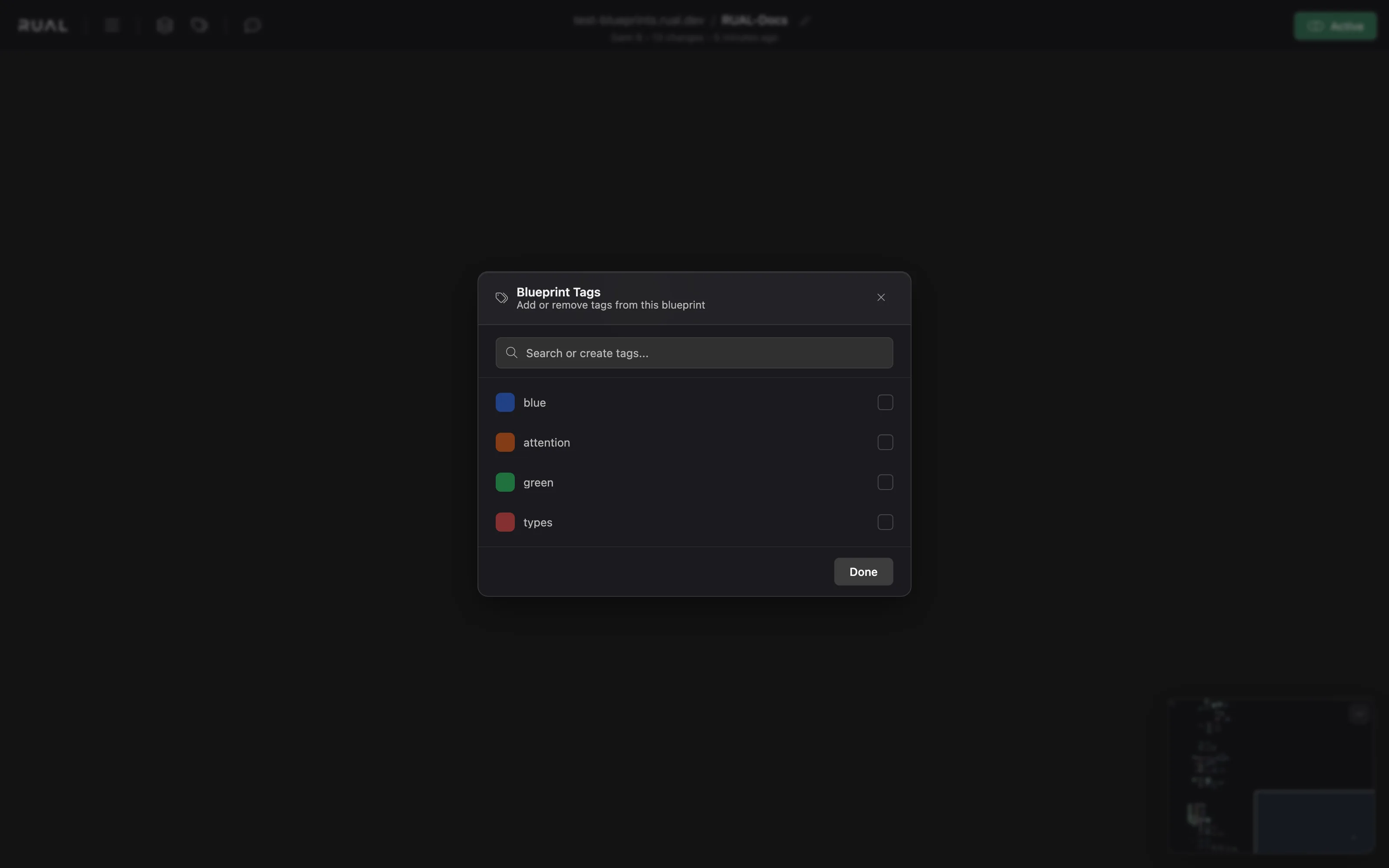
- Tags: tag blueprints from the top bar so their purpose is visible in the overview.
- Explorer: use the Explorer button to find all blocks of a type: for example every API block, in one list.
- Audit log: every modification is logged automatically. Use a block's
Revisionsoption to see the history of just that block when something changed unexpectedly. - Copy, don't rebuild: when a flow already exists in another blueprint, copy the blocks over instead of recreating them: then extract a shared function if the copy is the second one.
If several of these tools feel necessary just to stay oriented, take it as the signal from When to Split Blueprints: the canvas is telling you it holds more than one component.
Team Habits
Blueprints are a shared canvas with real-time collaboration, so team discipline matters as much as individual skill:
- Saving is not deploying: since version 13.0.7, saved changes stay in development. Deploy deliberately through the
Deploymentmenu, and use thecomparebutton to review the difference between your development blueprint and what is live before you ship. See How to Deploy. - Preview before you save: append
?stagingto a page's URL to see your unsaved changes in action, then save withCmd/Ctrl + Sonce you are satisfied. See Staging and saving. - Review history, not memory: the audit log records every change like git commits. Check a block's
Revisionsbefore "fixing" something a teammate may have changed on purpose. - Communicate on the canvas: warnings and comments travel with the blueprint. Use them instead of chat messages that disappear.
- Debug against real data safely: use
Production Runfrom the play mode options to execute the development blueprint against production data without touching the live environment: and remember this permission can be restricted per user in User Access Management.
None of these habits cost time once they are default. Together they are what let multiple developers share a canvas without stepping on each other.
Tips and Tricks The full productivity reference: searching, selecting, staging, namespaces, and the minimap. Block Execution Execution order, precompiled data, error handling, and async patterns. Common Pitfalls Cache usage, real-time search, and aggregation misuse to avoid.Frequently asked
When should I split a RUAL blueprint into multiple blueprints?
Dedicate each blueprint to a single component: a page, a modal, an API endpoint or a set of related functions. Signs a blueprint has grown too big: you need the minimap and Ctrl + F for every navigation, it mixes unrelated responsibilities, or new team members cannot tell what it is from the overview.
How do I share logic between RUAL blueprints?
With public functions. Create a trigger_custom_function block in a dedicated function blueprint under a namespace and call it from anywhere else with function_custom_execute. Functions are private by default, so make them public only when another blueprint genuinely needs them.
How do I make RUAL storage searches faster?
Always set a limit, prefer query_bool_filter because it does no scoring, return only the fields you need with query_source_by_field, and stream large sets with function_search_stream. For results requested far more often than the data changes, cache in Redis and invalidate through storage events.
Does a RUAL function call block the rest of the flow?
Yes. function_custom_execute waits for the function to complete before the flow continues, so work that does not need to finish before the user gets a response belongs on the queue instead.