Build Your First CRUD App
Build a small Tasks manager with web blocks and built-in storage: a page that lists tasks, a form that adds them, buttons that update or delete one row in place, a detail page and a search. You write no backend code.
Before you start, make sure you have access to a cluster (see Getting Access) and have done the Quickstart, which shows the code view and the Activate switch.
Plan your data: one document per task
RUAL storage is JSON-based and schema-less. You don't create tables or declare fields up front. The tradeoff is that there are no relationships between documents, so each document carries everything you want to display (denormalization). A task document looks like this:
{
  "owner_guid": "a23575f49d0af385314c1f02280163374297e018a692e5e4ab85eb307ebf6ebc",
  "owner_name": "joe doe",
  "status": "open",
  "title": "write the release notes"
}- Everything is lowercase. Field names are always stored in lowercase, and searches are case-sensitive: storing searchable values in lowercase saves you from missed matches later.
- The owner is denormalized. Instead of only referencing a user, we embed
owner_nameso the list can show it without a second lookup. We keepowner_guidas the reference for when we do need the full user document. - There is no
createdfield. Creation and update timestamps live in_meta(_meta.created,_meta.updated), never in the document root. Do not set your own copy of them.
Every document automatically gets a _meta object with its unique guid, timestamps and removal state. For the full storage reference, see Storage.
Set up a storage and an empty blueprint
Create the blueprint
Create a blueprint named
Tasksand close the What type of blueprint would you like dialog with its×: it has no web page type yet.Create the storage
Right-click the canvas, choose
Add new blockand add the storageselectorblock. In its storage popup, typetasksand confirmCreate storage.Open the code view
Switch the header to
Code. Every step below adds declarations to this source. After each step pressCheck, thenStage to canvas, thenSaveon the canvas. The order of declarations does not matter.Activate
Click
Inactivein the top bar once. The blueprint then answers after every save.
Check reports field "title" is not in the field registry for fields your cluster has not seen. That is a warning, not an error: it says Compiles, with warnings on the marked lines. and you can stage. List the tasks with web_foreach
The page flow searches the tasks storage and hands the documents to web_foreach, which repeats a row template and gives every row a data-key: the document's _meta.guid. That key is how a later action reaches exactly that row.
| Block | Purpose | Connects to |
|---|---|---|
web_page (tasks) |
Starts the flow on /tasks. Its scope *loggedin sends visitors without a session to sign in. |
function_search (flow) |
storage (tasks) |
Selects the storage to search. In the source, search@tasks says the same. |
function_search (storage pin) |
query_sort_field (_meta.created) |
Newest tasks first: the order is descending unless its asc pin is true. |
function_search (query pin) |
number_default (25) |
Limits the result set. | function_search (limit pin) |
function_search |
Runs the search and outputs an array of documents. |
web_foreach (items pin) |
web_foreach |
Renders the row template once per document, or the empty template when there are none. |
web_render (a custom pin rows) |
web_render |
Renders the page around the rows and answers the request. | End of the flow |
This is the page template, spread over lines for reading. The rows print with triple braces because web_foreach has already escaped them.
<main>
  <h1>{{title}}</h1>
  <form data-action="add">
    <label>New task <input name="title" required data-msg-required="Give the task a title"></label>
    <div data-error-for="title"></div>
    <button type="submit" data-loading-text="Adding">Add</button>
  </form>
  <form data-action="search">
    <input type="search" name="q" required placeholder="Search tasks">
    <button type="submit">Search</button> <a href="/tasks">Show all</a>
  </form>
  <table>
    <thead><tr><th>Task</th><th>Status</th><th>Owner</th><th></th></tr></thead>
    <tbody id="tasks">{{{rows}}}</tbody>
  </table>
</main>
And the template of one row. A row's variables are the fields of its document, including _meta. Values are escaped for where they stand, so a title holding <b> stays text.
<tr>
  <td><a href="/tasks/{{_meta.guid}}">{{title}}</a></td>
  <td>{{status}}</td>
  <td>{{owner_name}}</td>
  <td>
    {{if status == 'open'}}<button type="button" data-action="done">Done</button>{{/if}}
    <button type="button" data-action="delete" data-confirm="Delete {{title}}?" data-optimistic="remove">Delete</button>
  </td>
</tr>
In the source each template is one string, because a Blueprint Language string cannot span lines. The templates use single quotes for their attributes, so nothing needs escaping. Replace everything in the editor with this:
blueprint "Tasks"

let page_template = "<main><h1>{{title}}</h1><form data-action='add'><label>New task <input name='title' required data-msg-required='Give the task a title'></label><div data-error-for='title'></div><button type='submit' data-loading-text='Adding'>Add</button></form><form data-action='search'><input type='search' name='q' required placeholder='Search tasks'><button type='submit'>Search</button> <a href='/tasks'>Show all</a></form><table><thead><tr><th>Task</th><th>Status</th><th>Owner</th><th></th></tr></thead><tbody id='tasks'>{{{rows}}}</tbody></table></main>"

let task_row = "<tr><td><a href='/tasks/{{_meta.guid}}'>{{title}}</a></td><td>{{status}}</td><td>{{owner_name}}</td><td>{{if status == 'open'}}<button type='button' data-action='done'>Done</button>{{/if}} <button type='button' data-action='delete' data-confirm='Delete {{title}}?' data-optimistic='remove'>Delete</button></td></tr>"

let no_tasks = "<tr id='no-tasks'><td colspan='4'>No tasks found.</td></tr>"

flow page = web_page with {event: "tasks", scopes: ["*loggedin"]} {
  tasks = search@tasks(query: query_sort_field[_meta.created](), limit: 25)
  web_render(
    connection: page.connection,
    template: page_template,
    title: "Tasks",
    description: "A small task manager built with web blocks.",
    rows: web_foreach(items: tasks.array, template: task_row, empty: no_tasks).html,
  ) with {custom_pins: [{id: "rows", state: "rows", type: "value"}]}
}
Stage, save and open https://<your-cluster>/tasks: the page says No tasks found. The buttons and forms have nothing to run yet: the next steps add their actions.
The rows custom pin is what makes {{{rows}}} a template variable. On the canvas you add one with the + pin button on the block. A template can also read any field of the object on the data pin. See Lists and Tables.
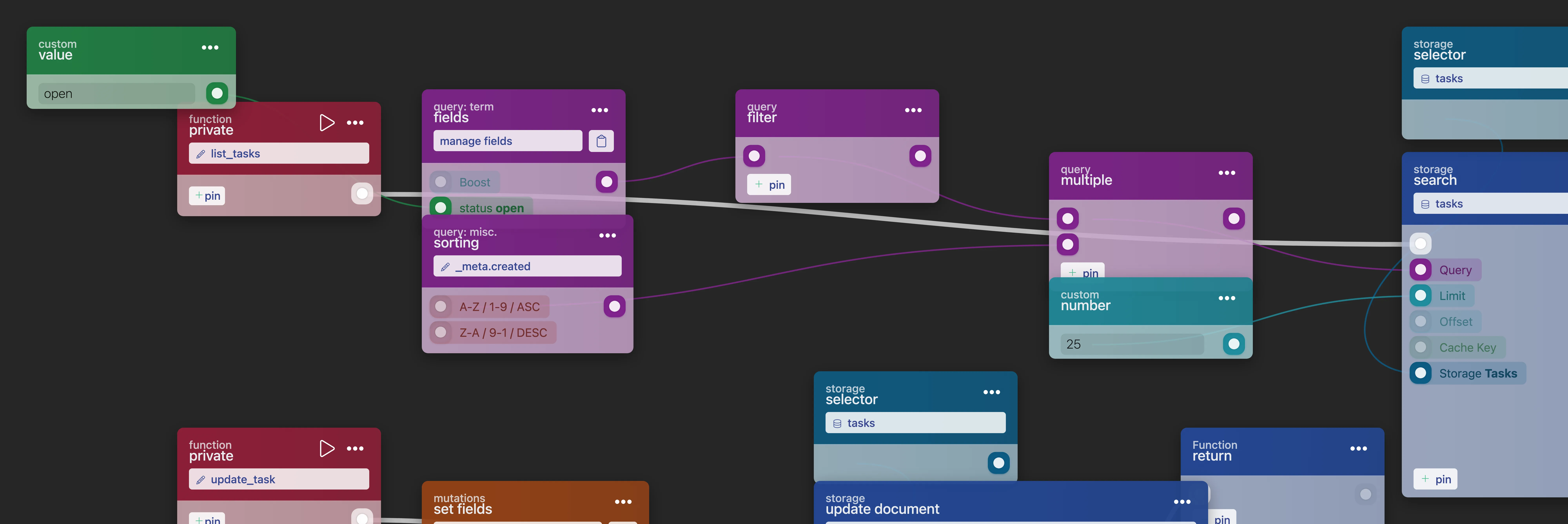
Showing only open tasks takes a term query
Queries are composed by connecting query blocks and feeding them into function_search. To list only open tasks, replace the query argument of the page's search:
query: query_and(query_bool_filter(term{status: "open"}), query_sort_field[_meta.created]())| Block | Purpose | Connects to |
|---|---|---|
query_bool_term_fields (status = open) |
Match only open tasks | query_bool_filter |
query_bool_filter |
Wrap the term query in an efficient filter context | query_and |
query_sort_field (_meta.created) |
Newest tasks first | query_and |
query_and |
Combine filter and sort into one query | function_search (query pin) |
Add a task with a web action
The form carries data-action="add", so submitting it runs the web_action whose event is add. The browser checks required itself and only sends a form that passes. The action checks what only the server can know, and answers with a new row.
flow add = web_action with {event: "add"} {
  let {title} = add.form
  let lower_title = value_to_lowercase(title)
  existing = search@tasks(query: query_bool_filter(term{title: lower_title}), limit: 1)
  guard not existing.has_hits else {
    web_errors(errors: {title: "You already have a task with this title."})
  }
  let {_meta.guid as owner_guid, username} = user_current()
  task = create@tasks(mutations{title: lower_title, status: "open", owner_guid: owner_guid, owner_name: username})
  web_remove(target: "#no-tasks")
  web_insert(
    target: "#tasks",
    position: "prepend",
    html: web_template(template: task_row, data: task.object, key: task.guid).html,
  )
}| Block | What it does here |
|---|---|
web_action |
Starts the flow. add.form is an object of the posted fields; let {title} = add.form reads one. |
value_to_lowercase |
Stores the title in lowercase, so a later exact match finds it. |
web_errors |
Shows the message in the form's data-error-for="title" element. It disappears as soon as the visitor edits the field. |
user_current |
The signed-in user, for the denormalized owner fields. |
function_create_document_from_mutations |
Creates the document from the mutations_set_bp_field_multiple block that mutations{...} stands for. You never set a creation timestamp yourself: storage writes _meta.created for you. |
web_template |
Renders the row template for the new document, with its guid as the row's key. |
web_insert |
Adds that row at the top of #tasks. web_remove first drops the No tasks found. row; when that row is not there, it does nothing. |
The create block returns the document, including the generated _meta with its guid, on its object out-pin, and the raw guid on its guid out-pin:
{
  "_meta": {
    "cms": 1752768000362,
    "created": 1752768000,
    "entity": 1,
    "expiry": -1,
    "guid": "b34686f50e1b04964250f13391274d85308c129a793c6ec97bc41870fc67081e",
    "removed": 0,
    "ums": 1752768000803,
    "update_hash": "60e27209fa93063b5605e41605c2722ed428cae0",
    "updated": 1752768000
  },
  "owner_guid": "a23575f49d0af385314c1f02280163374297e018a692e5e4ab85eb307ebf6ebc",
  "owner_name": "joe doe",
  "status": "open",
  "title": "write the release notes"
}Show one task on a page with its guid in the URL
A second web_page in the same blueprint answers /tasks/:guid. The :guid segment arrives on the block's params out-pin and goes into function_get_document.
let detail_template = "<main><h1>{{title}}</h1><p>{{status}}, owned by {{owner_name}}</p><p><a href='/tasks'>Back to the list</a></p></main>"

let not_found_template = "<main><h1>{{title}}</h1><p><a href='/tasks'>Back to the list</a></p></main>"

flow detail = web_page with {event: "tasks/:guid", scopes: ["*loggedin"]} {
  task = get@tasks(detail.params.guid)
  guard task.accessible else {
    web_render(connection: detail.connection, template: not_found_template, title: "Task not found", status: 404)
  }
  let {title, status, owner_name} = task.object
  web_render(
    connection: detail.connection,
    template: detail_template,
    title: title,
    description: "One task of the task manager.",
    data: {status: status, owner_name: owner_name},
  )
}
Getting by guid is the fastest retrieval method and easier to cache than searching. The block's accessible out-pin is true when the document exists and is not removed, so the guard answers a 404 page for anything else. To load several tasks at once, use function_get_documents with an array of guids.
Update and delete one row in place
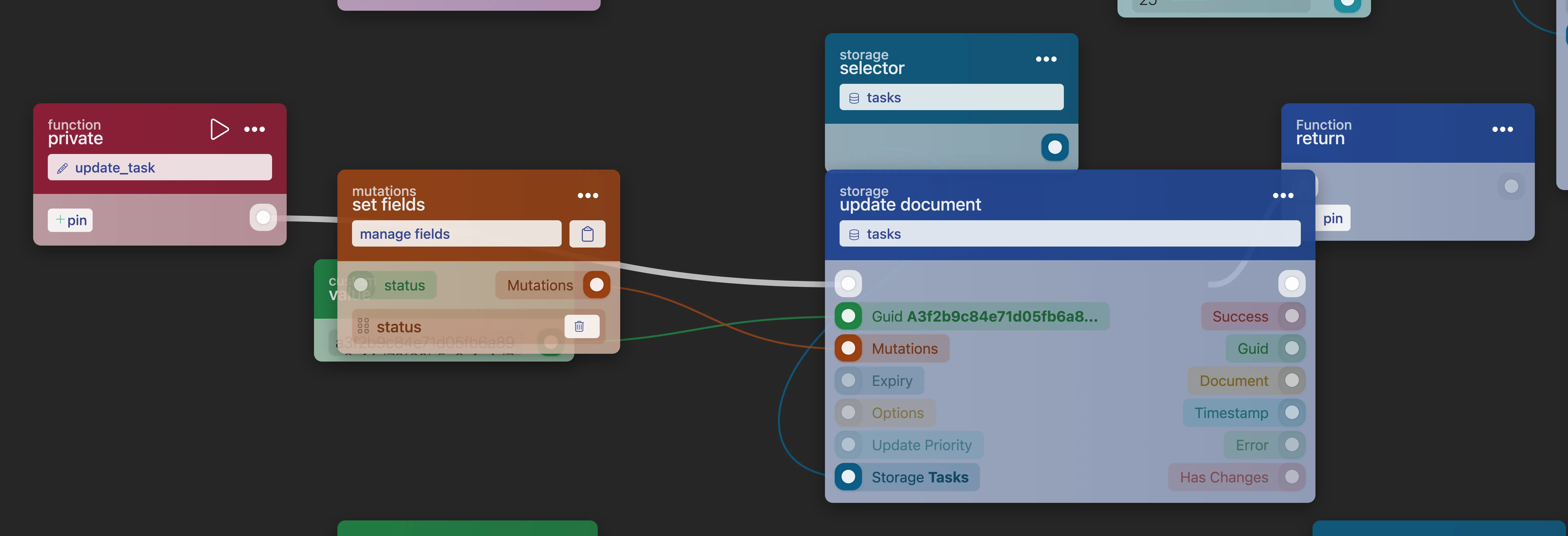
A button inside a row sends that row's data-key along, and the action receives it on its key out-pin. So each action knows which document to change and which row to change on the page.
flow done = web_action with {event: "done"} {
  task = update@tasks(guid: done.key, mutations: mutations{status: "done"})
  web_replace(key: done.key, html: web_template(template: task_row, data: task.object, key: done.key).html)
}

flow delete = web_action with {event: "delete"} {
  remove@tasks(guid: delete.key)
  web_remove(key: delete.key)
}- Done updates the document, renders the row again with
web_template, andweb_replaceswaps it in. Only that row travels over the network. - Delete removes the document and
web_removetakes the row off the page.data-optimistic="remove"on the button hides the row at once and brings it back if the action fails.
Updates go through mutations, RUAL's transaction-based update system: each update is processed sequentially, so two users editing the same task can't overwrite each other. The same mutation blocks you used at creation work here: increments, array adds, field removals. See Updating Documents for the full list.
For deletion you have two options:
Remove: soft delete
function_remove_document marks the document as removed and excludes it from search results. The data stays and can be brought back with function_restore_document.
Delete: permanent
function_delete_document deletes the document for good (unless revisions are enabled on the storage). Its very_sure pin must be true or it refuses.
remove (soft delete) in most cases. It allows recovery when a user deletes a task by accident, and you can permanently purge removed documents later with a repeating event after a retention period. Search by title and update the list in place
The search form runs one more action. It builds a full-text query and answers with new contents for #tasks, using the same row template. The list page never reloads, and Show all is a plain link back to the page.
flow find = web_action with {event: "search"} {
  let {q} = find.form
  results = search@tasks(
    query: query_and(
      query_bool_simple_query_string_field[title](search: value_to_lowercase(q)),
      query_sort_field[_meta.created](),
    ),
    limit: 25,
  )
  web_update(target: "#tasks", html: web_foreach(items: results.array, template: task_row, empty: no_tasks).html)
}| Block | Purpose | Connects to |
|---|---|---|
query_bool_simple_query_string_field (field: title) |
Full-text match of the user's input on title |
query_and |
query_sort_field (_meta.created) |
Keep the sorting | query_and |
query_and |
Combine text query and sort | function_search (query pin) |
web_update |
Gives #tasks the new rows, keeping the element itself |
End of the flow |
Report will not match report. query_bool_simple_query_string_field handles common user search syntax and ignores invalid syntax instead of failing, which makes it the right choice for user-facing inputs. For autocomplete-style or typo-tolerant search, see the other text query blocks in Full-Text Search. To search while the visitor types, see data-trigger="input" in the Markup Reference.
The whole blueprint in one piece
All the steps together, ready to paste into the code view. Create the tasks storage first.
blueprint "Tasks"

let page_template = "<main><h1>{{title}}</h1><form data-action='add'><label>New task <input name='title' required data-msg-required='Give the task a title'></label><div data-error-for='title'></div><button type='submit' data-loading-text='Adding'>Add</button></form><form data-action='search'><input type='search' name='q' required placeholder='Search tasks'><button type='submit'>Search</button> <a href='/tasks'>Show all</a></form><table><thead><tr><th>Task</th><th>Status</th><th>Owner</th><th></th></tr></thead><tbody id='tasks'>{{{rows}}}</tbody></table></main>"

let task_row = "<tr><td><a href='/tasks/{{_meta.guid}}'>{{title}}</a></td><td>{{status}}</td><td>{{owner_name}}</td><td>{{if status == 'open'}}<button type='button' data-action='done'>Done</button>{{/if}} <button type='button' data-action='delete' data-confirm='Delete {{title}}?' data-optimistic='remove'>Delete</button></td></tr>"

let no_tasks = "<tr id='no-tasks'><td colspan='4'>No tasks found.</td></tr>"

flow page = web_page with {event: "tasks", scopes: ["*loggedin"]} {
  tasks = search@tasks(query: query_sort_field[_meta.created](), limit: 25)
  web_render(
    connection: page.connection,
    template: page_template,
    title: "Tasks",
    description: "A small task manager built with web blocks.",
    rows: web_foreach(items: tasks.array, template: task_row, empty: no_tasks).html,
  ) with {custom_pins: [{id: "rows", state: "rows", type: "value"}]}
}

flow add = web_action with {event: "add"} {
  let {title} = add.form
  let lower_title = value_to_lowercase(title)
  existing = search@tasks(query: query_bool_filter(term{title: lower_title}), limit: 1)
  guard not existing.has_hits else {
    web_errors(errors: {title: "You already have a task with this title."})
  }
  let {_meta.guid as owner_guid, username} = user_current()
  task = create@tasks(mutations{title: lower_title, status: "open", owner_guid: owner_guid, owner_name: username})
  web_remove(target: "#no-tasks")
  web_insert(
    target: "#tasks",
    position: "prepend",
    html: web_template(template: task_row, data: task.object, key: task.guid).html,
  )
}

let detail_template = "<main><h1>{{title}}</h1><p>{{status}}, owned by {{owner_name}}</p><p><a href='/tasks'>Back to the list</a></p></main>"

let not_found_template = "<main><h1>{{title}}</h1><p><a href='/tasks'>Back to the list</a></p></main>"

flow detail = web_page with {event: "tasks/:guid", scopes: ["*loggedin"]} {
  task = get@tasks(detail.params.guid)
  guard task.accessible else {
    web_render(connection: detail.connection, template: not_found_template, title: "Task not found", status: 404)
  }
  let {title, status, owner_name} = task.object
  web_render(
    connection: detail.connection,
    template: detail_template,
    title: title,
    description: "One task of the task manager.",
    data: {status: status, owner_name: owner_name},
  )
}

flow done = web_action with {event: "done"} {
  task = update@tasks(guid: done.key, mutations: mutations{status: "done"})
  web_replace(key: done.key, html: web_template(template: task_row, data: task.object, key: done.key).html)
}

flow delete = web_action with {event: "delete"} {
  remove@tasks(guid: delete.key)
  web_remove(key: delete.key)
}

flow find = web_action with {event: "search"} {
  let {q} = find.form
  results = search@tasks(
    query: query_and(
      query_bool_simple_query_string_field[title](search: value_to_lowercase(q)),
      query_sort_field[_meta.created](),
    ),
    limit: 25,
  )
  web_update(target: "#tasks", html: web_foreach(items: results.array, template: task_row, empty: no_tasks).html)
}
Next steps
You now have a working CRUD app: a server-rendered list, documents created with mutations, read by guid, updated transactionally and soft-deleted, each answering with only the rows that changed.
Actions Every update a web action can answer with, and how a button finds its row. Forms and Validation Browser checks, server errors next to the right field, and forms that work without JavaScript. Storage Go deeper on query types, denormalization strategies, document lifecycle and caching. Storage Events React to creates, updates and removals: for example to sync denormalized owner names. Build Your First API Expose the same tasks as JSON to other services.Frequently asked
Where does RUAL store the creation date of a document?
In the _meta object, as _meta.created, together with _meta.updated, _meta.guid and the removal state. Storage writes those fields for you, so you never add your own created field at the root of the document.
Does RUAL storage support relationships between documents?
No. Storage is JSON-based and schema-less, and there are no relationships between documents. Each document carries the values it needs to be displayed, which is why examples embed a name next to the referenced guid.
Why are my RUAL storage searches not finding anything?
Field names are always stored in lowercase and searches are case-sensitive. Store searchable values in lowercase when you write them, so the query matches later.